
Automation
Workflows
Automating what happens after a recording is processed
A workflow is the chain of steps Caven runs automatically after a recording finishes uploading. Open Workflows in the sidebar. It has two tabs: Builder, where you turn steps on and off, and Logs, a history of every run.
The pipeline
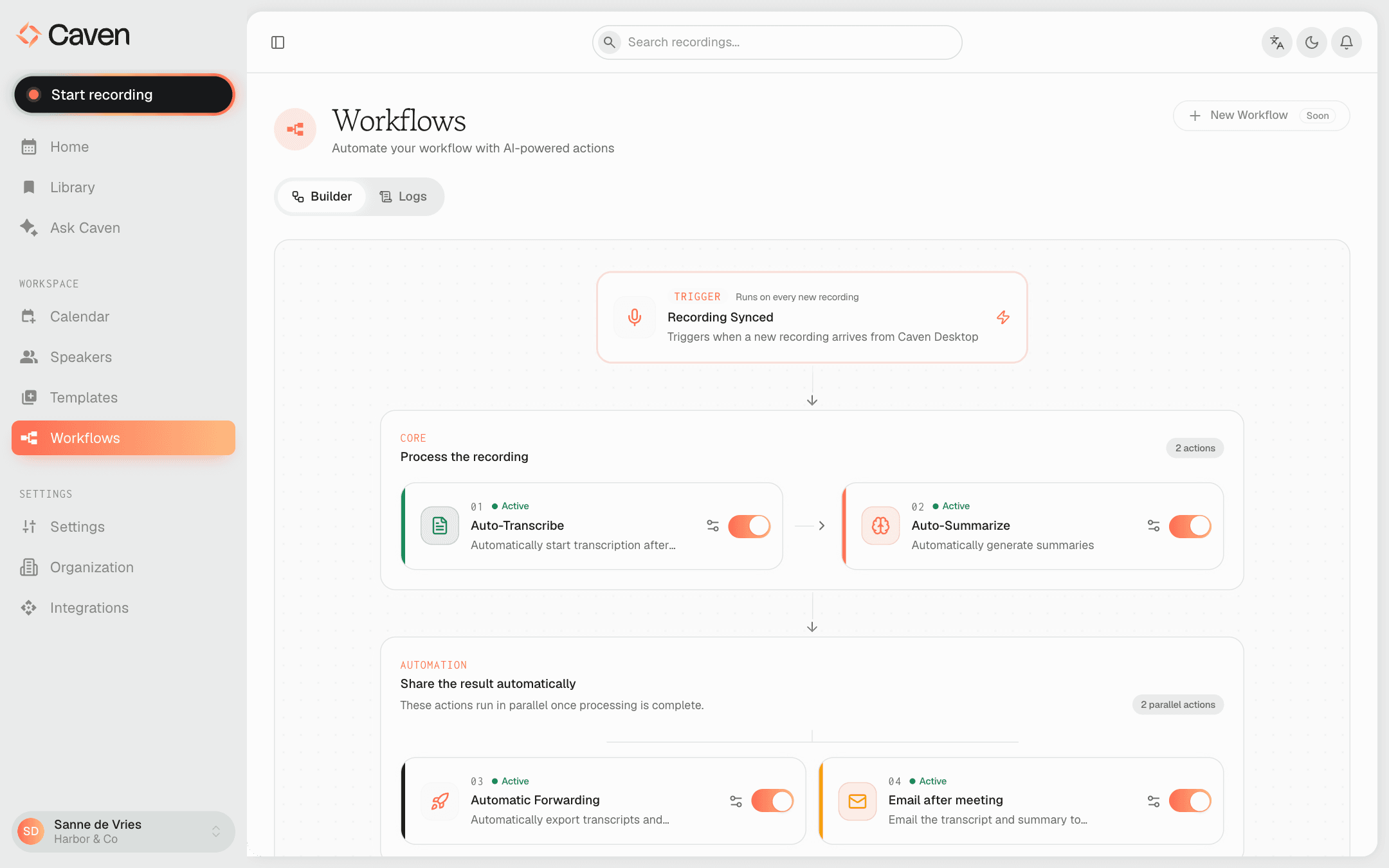 The Workflows Builder with the Recording Synced trigger, Auto-Transcribe and Auto-Summarize under Process the recording, and Automatic Forwarding and Email after meeting under Share the result automatically
| Step | What it does | Configurable |
|---|---|---|
| Recording Synced | The trigger. Runs on every new recording once its upload completes. | Always on |
| Auto-Transcribe | Speech to text | On / off |
| Auto-Summarize | Structured summary with action items. Needs transcription. | On / off, plus the summary language: same as the transcript, Dutch, English, French, Portuguese, or German |
| Automatic Forwarding | Sends the transcript and/or summary to a connected storage tool | On / off, plus the target and what to send |
| Email after meeting | Emails the summary (and optionally the transcript) to people | On / off, plus recipients and the message |
The two processing steps run in sequence; the two sharing steps run in parallel once processing is done.
Transcribe and summarize are the same two settings you saw during onboarding. Changing them here changes them everywhere.
Forward to an integration
With this step on, choose:
- Target: one of your connected integrations. File delivery works with Google Drive, OneDrive, and SharePoint. Connect them first under Integrations in the sidebar, see Integrations.
- What to forward: transcript and summary, summary only, or transcript only
- Folder: where the files land in that drive
- The file format for the transcript and the summary
This is the automatic version of Send to integration on the Actions tab.
Email the result
With this step on, Caven emails the meeting output once the summary is ready:
- Recipients: the meeting participants (all of them, or only participants from your organization), a fixed list of addresses, or both
- Attachments: choose whether to include the summary, the transcript, or both
- Message: an editable subject and body, with a separate version per language (Dutch, English, French)
- Wait for speaker identification: hold the email until the speakers in the meeting have been named, so recipients see names instead of "Speaker 1". If nobody names them in time, the email goes out anyway after the delay you set under Send anyway after (5 to 480 minutes).
If the email went out and you need to send it again, use Resend email on the recording's Actions tab.
Logs
The Logs tab shows each workflow run, step by step, and where it failed if something went wrong. A failed step (for example, an expired integration connection) is also surfaced on the recording page.
Today there is one workflow, applied to every recording. Below the Builder, a Coming Soon row lists what is next: Slack notifications, calendar sync, and CRM updates.