
Account & settings
Calendar
Connecting a calendar and what Caven does with it
A connected calendar is what lets Caven recognise your meetings instead of you starting every recording from scratch.
Connecting a calendar
Two ways, both from the Calendar page:
- Google or Outlook: click Go to Integrations and connect it there, see Integrations. Caven reads your Google calendar with read-only access. For Outlook, Caven asks for read and write access to your calendar.
- Any other calendar by URL: click Add URL and paste an iCalendar (
.icsorwebcal://) feed, give it a name and a colour. This is read-only and useful for calendars from tools like BaseNet.
The Calendar page then shows your connected calendars and your schedule.
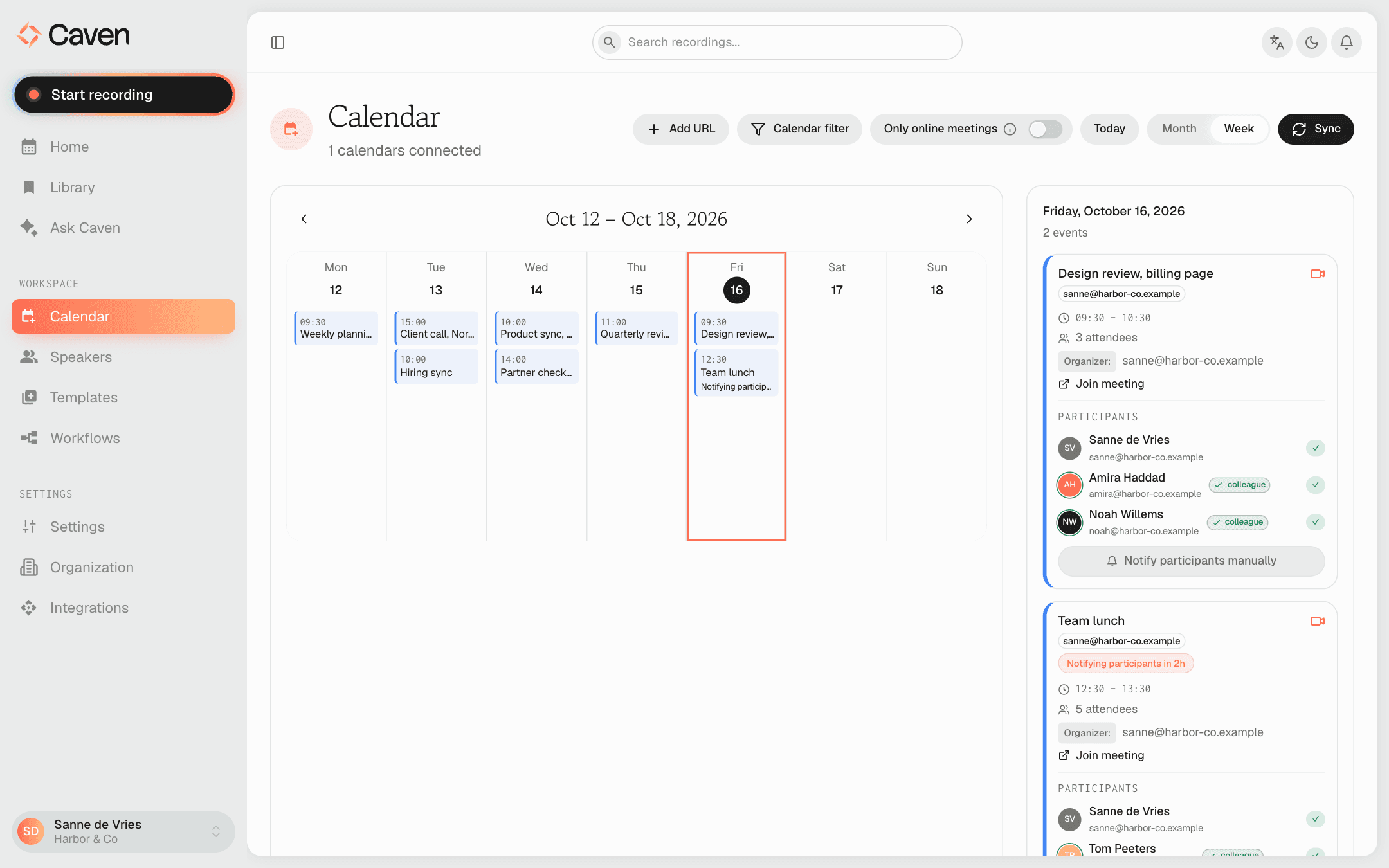 The Calendar page in Week view with meetings from a connected calendar
The Calendar page
- Month and Week: switch between a month grid and a week view. Today jumps back to the current date.
- Calendar filter: show all calendars or just one. Each connected calendar has a switch to turn it on or off, and a calendar added by URL can be removed here.
- Only online meetings: when on, Caven only syncs meetings with a Teams, Google Meet, or other online meeting link. When off (the default), it syncs both in-person and online meetings with 2 or more participants.
- Sync: fetch the latest events now. If attendee details are missing for some events, a banner offers Sync now to fetch them.
Click a meeting to see its details, its participants, and a Join meeting link.
What a connected calendar does
- Detects meetings and prompts you to record them (in Caven Studio)
- Pre-fills the meeting title on the recording
- Links the recording to the calendar event, so the title and attendees carry over
- Offers the attendees as name suggestions when you assign speakers
- Shows upcoming meetings on Home and in the mobile app, with a prep card before your next call
Recording from your calendar
Caven Studio can watch your schedule and prompt you to record. The prompt appears at the meeting's start time, or a set number of minutes before. See Recording a meeting.
Notifying participants
If you record meetings with other people, Caven can email them beforehand. Configure this under Settings:
- turn it on automatically for all recorded meetings
- set how many minutes before the meeting the notice goes out
- choose the language of the consent email
- optionally include a button for participants to decline being recorded
You can also send the email for one meeting: open it on the Calendar page and click Notify participants manually. The meeting then shows its status, for example Notifying participants in a set time, or Notified once the email went out.
Whether and how you need consent to record depends on where you and the participants are. The notification feature helps you meet that requirement; it does not decide it for you.