
Working with recordings
Transcripts & summaries
The recording page, its tabs, and how to edit a transcript or summary
After a recording uploads, Caven produces a transcript and, if auto-summarize is on, a summary. You do not trigger anything and you do not have to name the speakers first: both appear on the recording page when they are ready. See Assigning speakers.
The recording page
Open a recording from Library. At the top are the title (click it to rename), the video or audio player and the Who spoke when card. Below them the page has five tabs:
| Tab | Contents |
|---|---|
| Transcript | The full transcript with speaker labels and timestamps |
| Summary | The structured summary and its tasks |
| Ask Caven | Ask questions about the meeting. See Ask Caven |
| Notes | Notes taken during or after the meeting. See Notes |
| Actions | Export, send to an integration, delete. See Exporting |
To share the meeting, use the Share button next to the title. See Sharing.
Transcript
Word-for-word text grouped into blocks by speaker, each with a timestamp. You can:
- Search the transcript, and step through matches with the up and down arrows
- Click a timestamp to jump the player to that moment
- Collapse a block to skim
- Copy transcript to copy the whole text, or open Metadata and View raw text from the three-dot menu
The Who spoke when card shows the language the transcript is in.
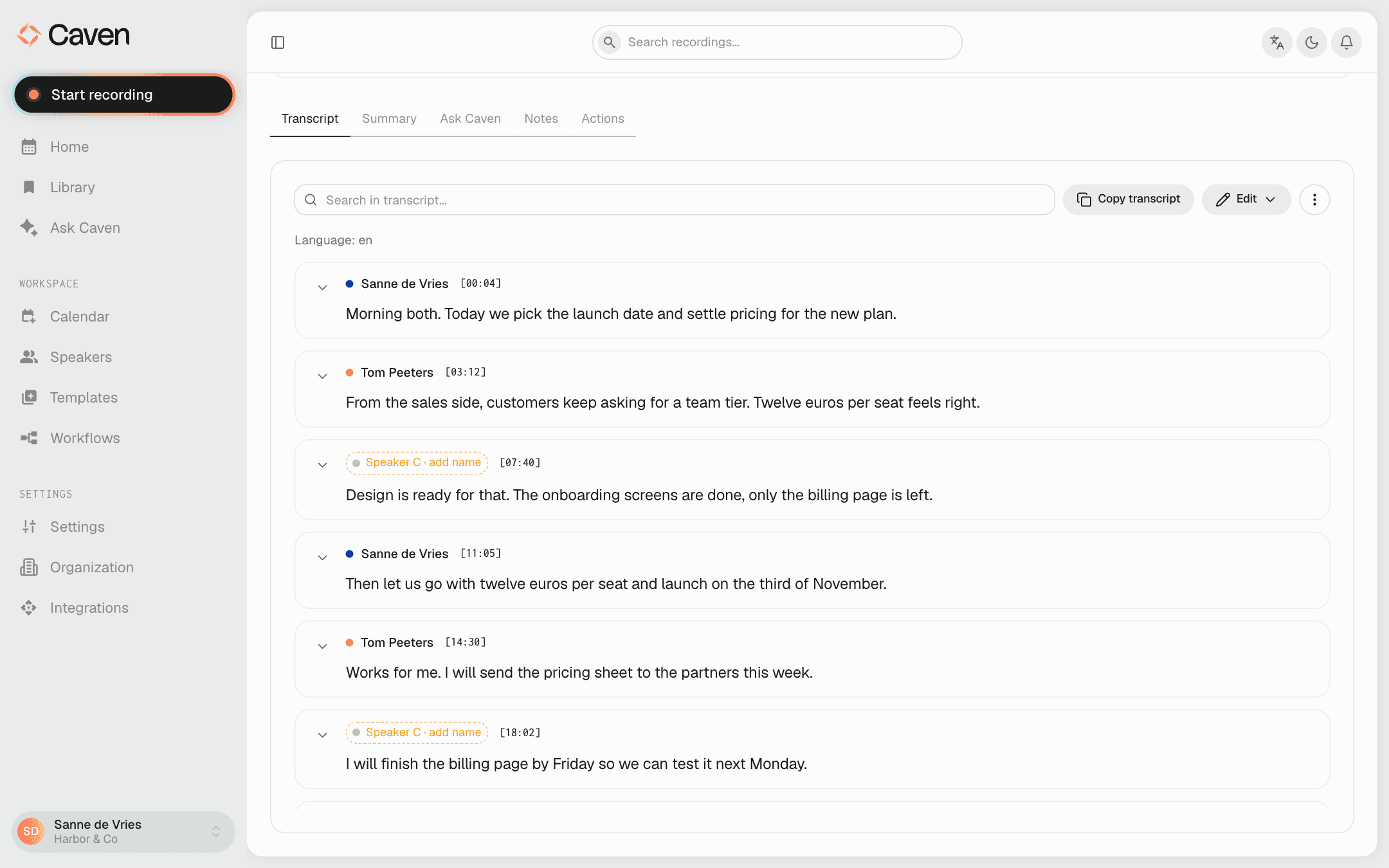 The Transcript tab: a search box, Copy transcript and Edit buttons, and speaker blocks each labelled with a name and a clickable timestamp
Edit the transcript
If you have edit rights, the Edit menu offers:
- Edit manually: change the text yourself. Keep the timestamp and speaker lines as they are.
- Edit with AI: describe one change, for example "remove filler words" or "change Kaven to Caven everywhere". Caven applies it and keeps the timestamps and speaker labels.
- Undo last edit: bring back the previous version of the transcript.
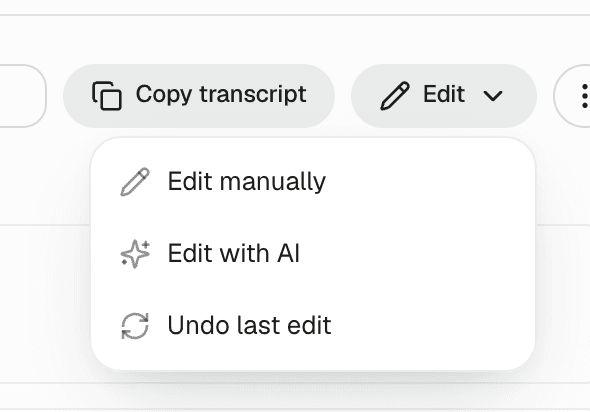 The transcript Edit menu open, showing Edit manually, Edit with AI and Undo last edit
Editing the transcript does not regenerate the summary. The Summary tab tells you when it may be out of date (see below). To fix who said what, rename the speaker in the Who spoke when card instead.
Summary
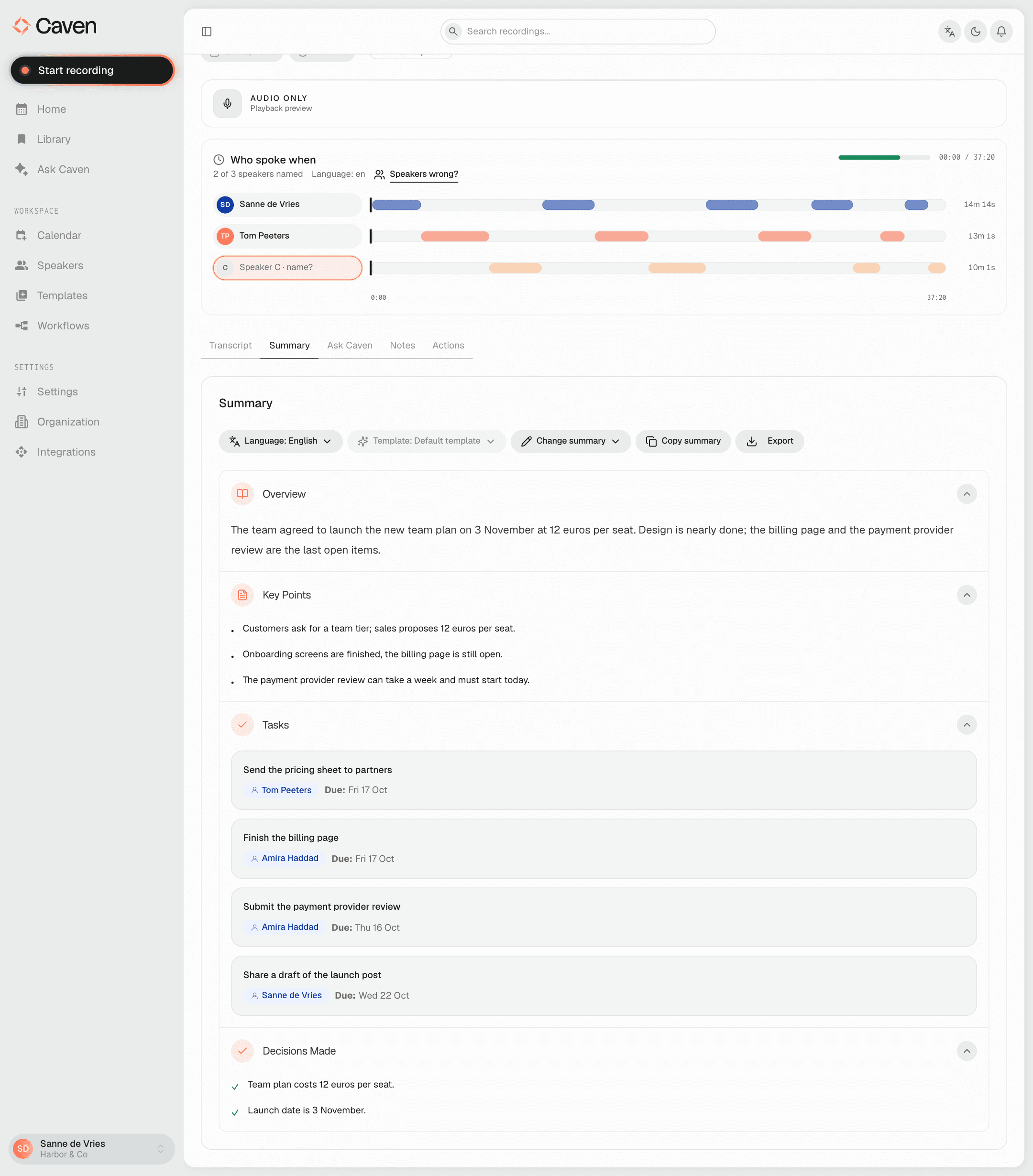 The Summary tab: the Language, Template, Change summary, Copy summary and Export buttons above the summary sections, with Tasks that each have an owner pill and a due date
The summary is broken into sections. Which sections appear depends on the template used, but typically:
- Overview: what the meeting was about
- Key points: the main outcomes
- Tasks: each task with an owner pill (Unassigned when nobody owns it) and a Due date where Caven could infer one
- Decisions: what was decided and what is still open
The controls above the summary:
Switch template
The Template button shows which template is applied. Open it to regenerate the summary with a different template. Hover the template name to see a Template info card that explains what it is for.
Change the language
The Language button shows the summary's current language. Open it to translate the summary into another language. Translation keeps the meaning and structure intact and is stricter than a full regeneration.
Edit the summary
Change summary offers two ways to edit, if you have edit rights:
- Change with AI: describe the change in plain language (for example, "make the tasks more concise" or "add a section for open questions"). Caven keeps the existing structure and applies only what you asked. Up to 2000 characters.
- Manual change: edit the full summary text yourself in a single editor.
If you keep correcting the same word by hand in your summaries, Caven can turn that fix into a personal spelling rule on its own. From then on it applies to Ask Caven answers and to future transcripts.
Copy and export
Copy summary copies the whole thing as formatted text. Export, next to it, downloads the transcript or summary as a file. See Exporting. To remove the summary, use Delete Summary in the Actions tab.
Setting a template's auto-apply on means future meetings of that type get it automatically, so you rarely need to switch templates by hand. See Templates.
Summary may be out of date
When the transcript was edited, or the summary's template was changed, after the summary was made, the Summary tab shows a Summary may be out of date banner:
- After a transcript edit: Update summary changes only the parts affected by your edit, Regenerate from scratch makes a whole new summary.
- After a template change: Regenerate summary makes a new summary with the new template.
You can also close the banner and keep the summary as it is.
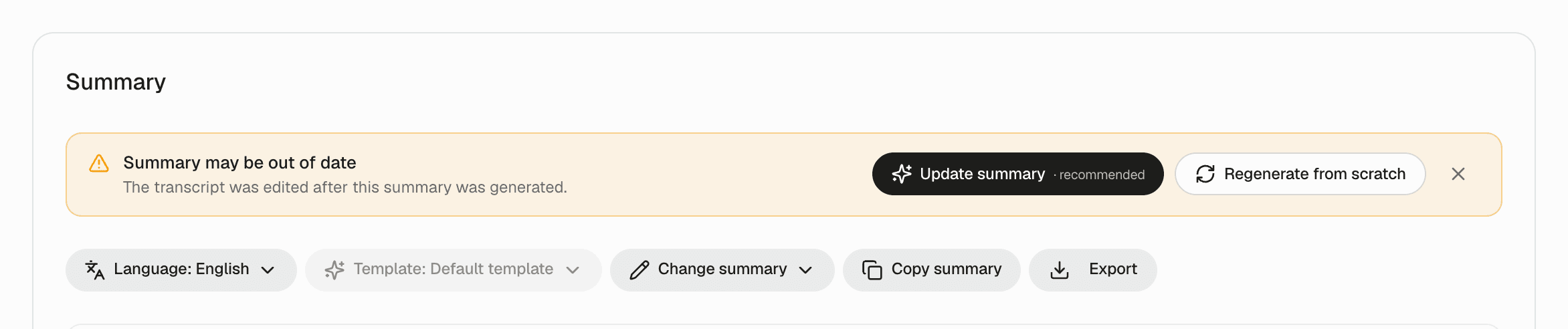 The Summary may be out of date banner above the summary, with Update summary and Regenerate from scratch
Jump from the summary to the transcript
Under Settings > General, the Summary to transcript option links each summary line and task to the moment in the transcript where it was said:
- Off (the default)
- Clickable text: click a summary line or task to jump to that turn in the transcript
- Timestamp button: a Show in transcript button appears next to each line and task
While Caven is still working
If you open a recording before processing finishes, the page shows one calm status line about what Caven is doing, and the Summary tab shows a placeholder until the summary is ready. Both refresh on their own.