
Getting started
Quick start
From invitation link to your first summary in about 15 minutes
By the end of this guide you'll have recorded a meeting, and Caven will have produced a transcript and a summary from it. It takes about 15 minutes, most of which is the recording itself.
Most people join Caven through an invitation link from their organization. If you don't have one, ask whoever manages your organization's Caven subscription. A new organization can start a free pilot or buy a plan from caven.io. See Plans & billing.
01Create your account
Open your invitation link. The invitation code fills in automatically. Either set a name and password, or continue with Google or Microsoft if your organization uses single sign-on. Accept the privacy policy and terms, and you're in.
02Finish the setup wizard
The first time you sign in, a short wizard walks you through your language, your name, and a few preferences. Two choices are worth making now:
- Turn on auto-transcribe and auto-summarize so recordings process themselves.
- Connect your Google or Outlook calendar. Caven will then pre-fill meeting titles and suggest attendee names when you assign speakers.
The wizard's other steps are quick: choose your interface language, confirm your display name (the only required field), and optionally set up multi-factor authentication, which some organizations require. You can change any of these later in Settings. For a full description of every step, see Account & onboarding.
03Install the desktop app
On the last wizard step, download Caven Studio, the desktop app, for Windows or macOS and install it. Sign in with the same account. It picks up the preferences you just set.
On first launch, Caven Studio runs its own short setup in four steps:
- Get started: a short welcome.
- Permissions: allow access to your microphone, and on a Mac to screen and system audio, so Caven can hear you and the other participants.
- Set up: an audio check. Say something and play some sound, and pick the microphone you want to use.
- Learn: a short tutorial video on how the recorder works.
See Account & onboarding for the details.
Caven Studio is what records online meetings. The web app is for reviewing them afterwards, but you can also start a recording from it with the Start recording button in the sidebar.
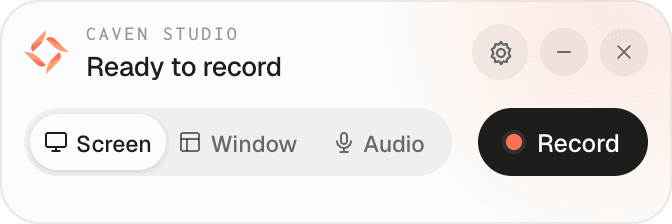 Caven Studio in its Ready to record state, with Screen, Window, and Audio mode buttons and a Record button
04Install the mobile app
The last wizard step also links to the Caven mobile app for iOS and Android. You can also search for Caven in the App Store or Google Play. Sign in with the same account.
The mobile app records audio only: set your phone on the table for an in-person meeting. Online meetings are still best recorded with Caven Studio. See Mobile app for everything the app does.
05Record a meeting
Start or join any meeting, then in Caven Studio:
- Choose a mode: Screen, Window, or Audio only.
- Click Record.
- When the meeting ends, click the red stop button.
You can also click Start recording in the web app's sidebar. Your browser asks to open Caven Studio, and the recording starts there.
The recording uploads to the web app on its own and opens there when it is ready. You don't need to keep Caven Studio open after the upload finishes.
No meeting to record right now? Record a two-minute voice memo to yourself in Audio mode. The rest of this guide works the same way.
06Assign speakers
Caven makes the transcript and summary right away, so you don't have to wait for anything. Voices you haven't named yet show as Speaker A, Speaker B, and so on.
Open the recording and look at the Who spoke when card under the player. Click a speaker, pick the right name (attendees from your calendar invite are offered as suggestions) and save. Caven then writes the name into the existing summary, including the owners of the tasks.
Each speaker you name becomes a saved voice profile, so Caven recognizes that person on its own in later recordings, and you usually only name someone once. See Assign speakers for how that works.
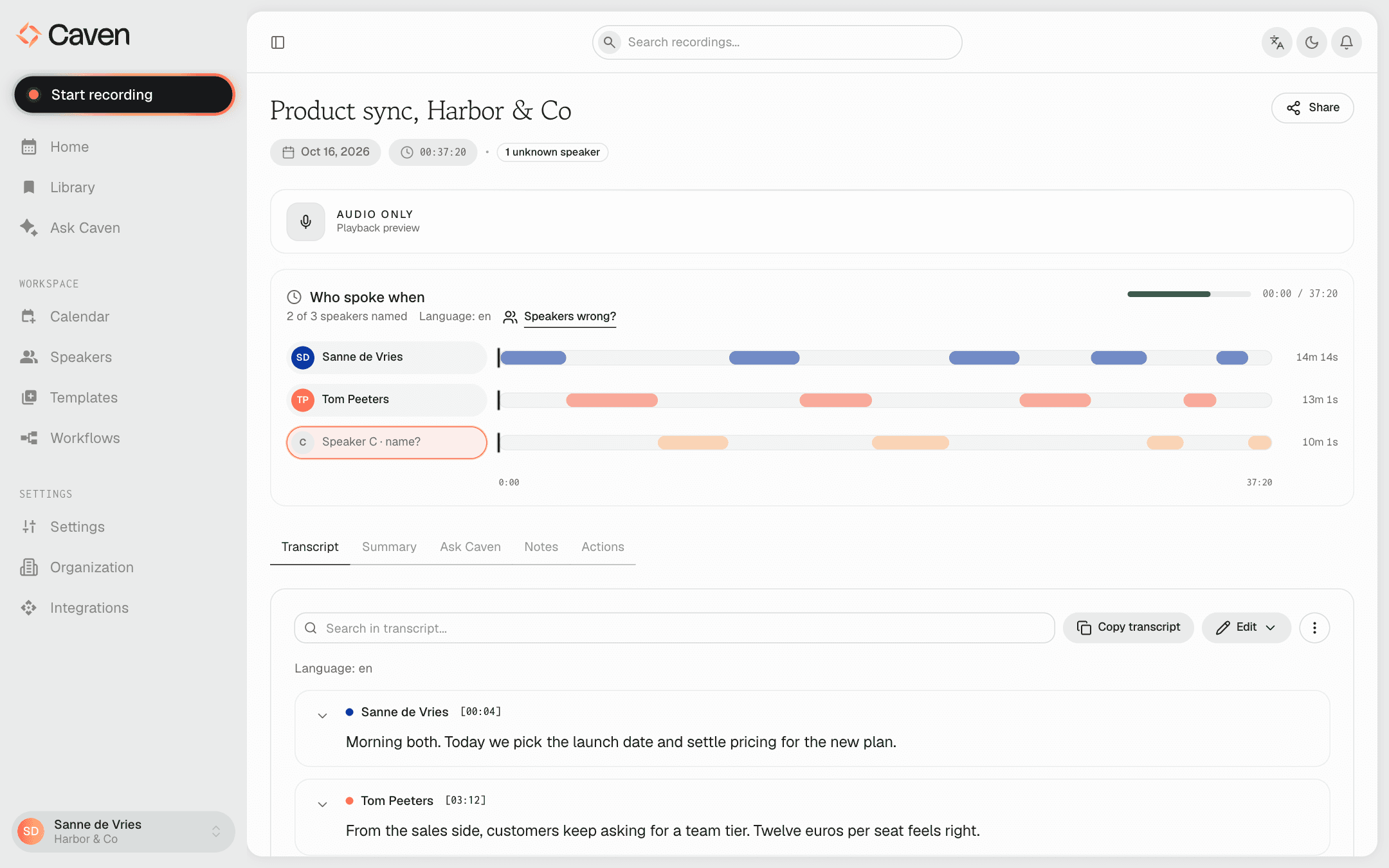 The Who spoke when card under the player, with a timeline per speaker and one speaker still to name
07Read the result
Open the recording from Library. You'll see tabs for the Transcript, the Summary with its action items, Ask Caven for asking questions about what was said, plus Notes and Actions.
That's the core loop: record, get a summary, name the speakers. Everything else builds on it.