
Account & settings
Privacy & data
Where recordings are stored, on-premise options for Enterprise, Trash, and who can see your recordings
Data controls live under Settings → Privacy & Data.
Where recordings are stored
The Data & Storage card shows how your organization stores its data. It is read-only: the storage mode comes from your organization's plan and setup, not from a personal setting. The mode in use is highlighted and marked Active.
- Caven Cloud: secure, encrypted storage on Caven's servers, managed by Caven in the EU. No setup needed.
- Own Server: recordings are stored on your organization's own server through the Caven on-prem connector.
- SharePoint Hosting: recordings, transcripts, and summaries are kept directly in your organization's Microsoft 365 SharePoint.
Hover over a mode and click More information for a short explanation. Own Server and SharePoint Hosting are marked Only available on Enterprise. Contact sales to arrange this.
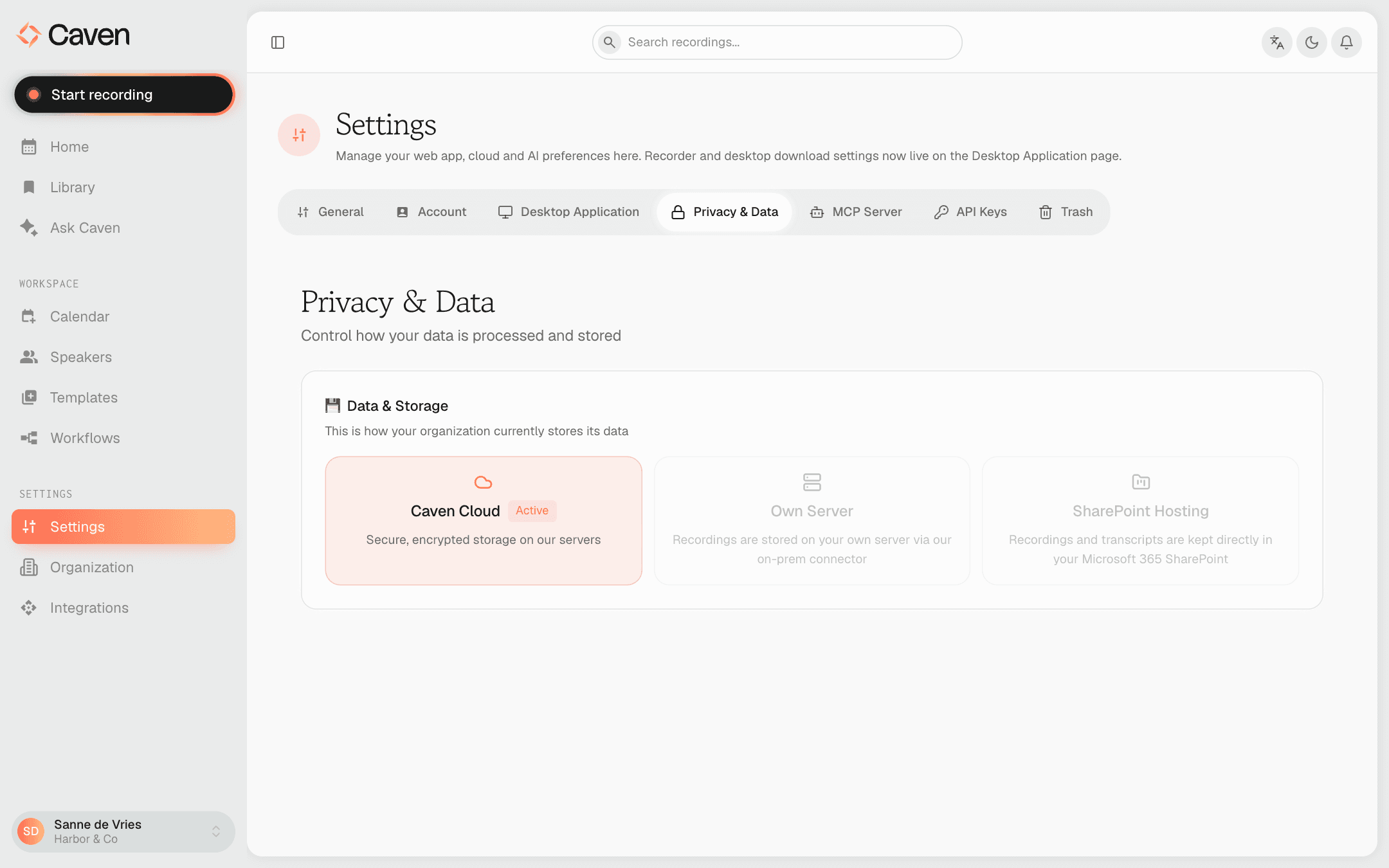 The Privacy & Data tab with the Data & Storage card showing Caven Cloud as the active mode
Your data stays in the EU and is never used for training. Caven is ISO 27001 certified and GDPR compliant.
On-premise storage for Enterprise
When your organization stores recordings on its own infrastructure, organization admins get an extra On-prem tab under Organization. It shows how recordings are delivered: to SharePoint, or to the connector running in Docker on your own server. For the technical setup of the connector, see On-prem connector.
Who can see your recordings
A recording is visible only to you until you either:
- share it directly with colleagues in your organization (they get read-only access, and you can take it away again), see Sharing,
- add it to a shared folder through Share → Folders (visible to the teams that folder belongs to, see Managing your organization), or
- create a share link (visible to anyone with the link, see Sharing).
Trash
To remove a single recording, use the delete options on its Actions tab. Deleted recordings go to Settings → Trash first.
In Trash you can Restore each recording or Permanently delete it. Recordings in Trash are deleted for good automatically after 30 days, and each one shows how many days it has left. There is no button to empty the whole Trash at once.
Recording other people
Where consent is required to record a meeting depends on your and the participants' location. Caven's participant notifications send a heads-up and consent request before recorded meetings; the responsibility for obtaining consent is yours.