
Troubleshooting
Known issues
The problems we see most often when recording, and how to fix or prevent them
These are the problems users run into most often, with the cause and what to do about it. Is your problem not listed, or does the explanation not solve it? Send your logs to Caven and contact support.
Transcription failed: "no spoken audio"
On the recording's page you see:
Transcription failed: cannot be performed because the recording contains no spoken audio.
In technical messages the same error appears as AssemblyAI transcription failed: language_detection cannot be performed on files with no spoken audio.
What went wrong
The recording contains no speech, so there is nothing to transcribe. This is almost never caused by Caven, but by the sound source during the recording:
- a different microphone was selected than the one you used (for example the built-in microphone while you wore a headset);
- system audio was set to a different device than the one you heard the meeting on, so the other participants were not recorded;
- the microphone was muted or its volume was at zero;
- another app (Teams, Zoom, Meet) had exclusive use of the microphone;
- Caven Studio had no permission to use the microphone.
Transcribing again does not help here: the sound is not in the file, so there is nothing to recover. That is why Caven does not retry this recording automatically. Prevention is the only fix, see below.
How to prevent it: check the meters when you start
During a recording, the Caven Studio bar shows two meters: on the left the microphone (your voice), on the right system audio (the other participants and anything your computer plays).
- Coral with a moving bar: sound is coming in from that device.
- Grey: nothing is coming in.
Glance at them in the first seconds of every recording. Say a sentence to test the microphone; system audio turns coral as soon as someone else in the meeting speaks.
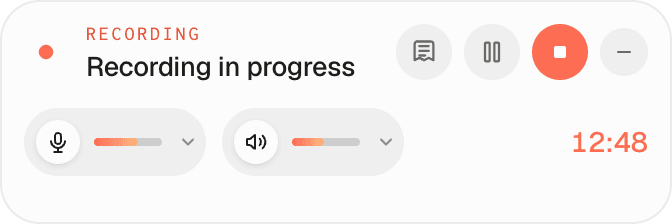 The Caven Studio recording bar with both meters coral: microphone and system audio are picking up sound
This is what it looks like when the microphone picks up nothing while you talk. Your voice is not ending up in the recording:
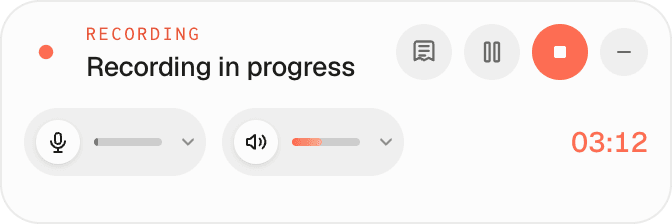 The recording bar with the microphone meter grey: no sound is coming in from the microphone
How to fix it during the recording
Click the small arrow next to the microphone meter (Choose microphone). The Audio device picker opens, where you choose another device; the recording switches over immediately, without stopping. Once the meter turns coral, sound is recorded again from that moment on. The part before you switched stays silent. For system audio, click the system audio meter to open its picker.
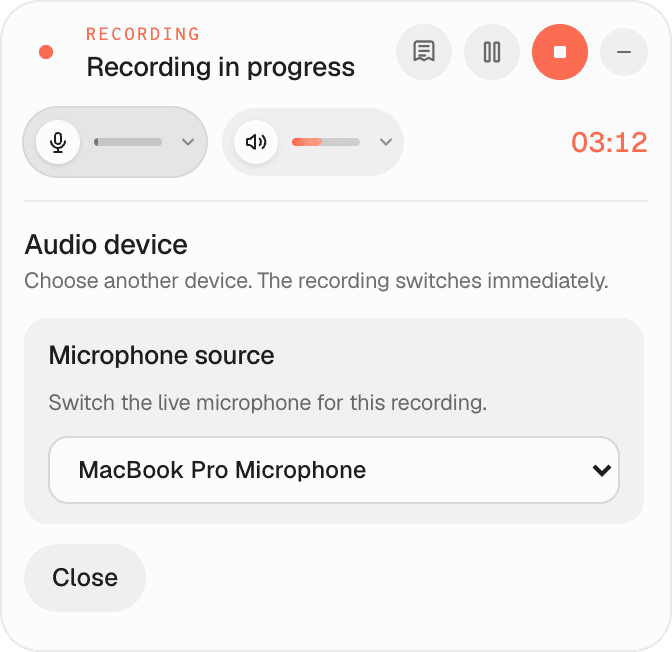 The picker for switching microphones during a recording, opened from the arrow next to the microphone meter
Clicking the microphone meter itself mutes or unmutes your microphone in the recording. If the bar says Microphone muted: it is not recorded, click it again to unmute.
You set your default devices for future recordings with the gear icon in Caven Studio, under Audio devices. For System audio, choose the device you actually hear the meeting on: your headset if you wear one, your speakers if you listen through them.
Microphone stays grey?
Go through these points:
- Is the microphone not muted, also not on the headset itself, in Caven, or in Teams/Zoom/Meet?
- Does Caven Studio have permission to use the microphone? Check the Permissions card in Caven Studio's settings, or:
- macOS: System Settings → Privacy & Security → Microphone.
- Windows: Settings → Privacy & security → Microphone.
- Is another app using the microphone exclusively? Close that app or turn off its exclusive mode and try again.
"Muted in [app]: your microphone is not recorded"
During a call, Caven follows your mute button in the meeting app. While you are muted there, your microphone is not recorded either, and the bar says so. This is on purpose. To record your microphone anyway, click the message. To turn this off for good, switch off Mute my microphone in Caven when I mute myself in the meeting under Meetings in Caven Studio's settings. See Desktop app settings.
"Microphone could not be opened"
If Caven Studio cannot open your microphone, it says The recording continues without your microphone. The recording keeps running with system audio only, so your own voice is missing. Choose another microphone with the arrow next to the microphone meter, or stop, fix the microphone and start again. The checklist under Microphone stays grey? applies here too.
"Computer sound is not being recorded"
This warning means Caven could not capture the sound of your computer. Only your microphone is recorded, so in an online call the other participants may be missing. Stop the recording and start it again. If it keeps happening, restart Caven Studio. On macOS, also check that Screen & System Audio Recording is allowed for Caven Studio, and that you run macOS 14.2 or later.
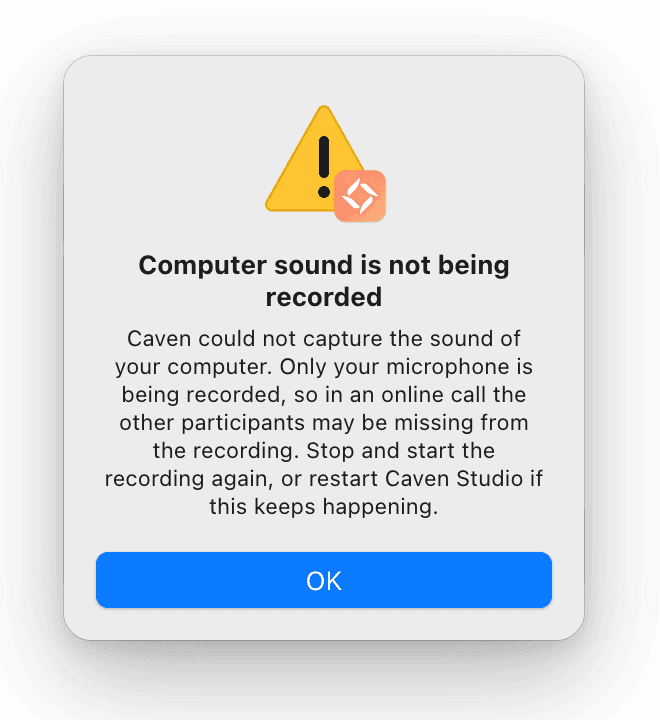 The recorder warning that computer sound is not being recorded
"Caven may not hear the other participants" (Windows)
On Windows, Caven records the sound of your default playback device. If your meeting app plays the call on a different device (for example a headset while your speakers are the default), Caven warns you and names both devices. Make the device the meeting app uses your default playback device in the Windows sound settings, and the other participants will be recorded.
"No audio reached Caven during this recording"
This message appears when you stop a recording in which no sound was picked up at all. Nothing was saved, so there is no file to recover either. The cause is the same as above: check the microphone and permissions, and start a new recording.
If after saving you get the warning "The saved recording appears to contain silence only", the recording was kept, but its transcription will most likely fail with the "no spoken audio" error. Check your devices before your next recording.
Transcript and summary are ready, but the recording won't play
After you stop, Caven Studio first sends the audio for transcription, and then uploads the full recording. That is why the transcript can be ready while the upload is still running. Until that upload has finished, you cannot play the recording yet; the recording page shows Video is still uploading….
- Keep Caven Studio open and make sure you are online; the app retries the upload automatically.
- If the upload failed, open the recorder: the recording shows Upload failed. Click Upload to try again.
- The recording is safe on your computer: the local copy is only deleted once the upload is confirmed.
- If the upload still does not finish after restarting Caven Studio, send your logs to Caven and tell support which recording it is about.
Recording stopped because the computer went to sleep
If your computer goes to sleep during a recording (for example when you close the laptop lid), the recording stops and you get the message Recording stopped. The part recorded up to that moment is saved and uploaded as usual; you do not need to do anything. Check whether the whole meeting was captured, and start a new recording if the meeting was still going on.
Caven Studio closed unexpectedly
If the app closes during a recording (a crash, or the computer shuts down), Caven Studio tries to recover the recording the next time it starts. You then get the message "Caven Studio recovered from an unexpected shutdown", listing what happened to each recording.
If it says a recording could not be fully recovered, or the app reports it could not convert it into a playable file, do not start over: the raw recording has been kept and can often still be recovered. Contact support, pass on the technical detail from the message, and send your logs.
The recording does not start (macOS)
On macOS, Caven Studio needs permission for Microphone and Screen & System Audio Recording, under System Settings → Privacy & Security. Without it, the recording does not start. Open Caven Studio's settings with the gear icon: the Permissions card shows what is missing. Click Check permissions (or Fix permissions when something required is missing) to set it right. See Desktop & mobile apps.
Mobile app
- Recording stops in the background: with Battery Saver / Low Power Mode on, your phone can interrupt the Caven app. Turn it off before you record.
- Recording interrupted: a phone call or another app can take over the microphone. Caven pauses and resumes on its own as soon as the microphone is free. Turn on notifications for Caven, so it can tell you when that happens.
- Storage full: Caven needs some free space on your phone to start a recording. If your phone runs out of space during a recording, Caven stops and keeps what was recorded.
See Mobile app for the details.