
Sharing and export
The Actions tab
Downloading, exporting, sending to an integration, trimming, and deleting
The Actions tab on a recording is where you get content out of Caven or remove it. To share a recording with someone, use the Share button at the top of the recording instead, see Sharing.
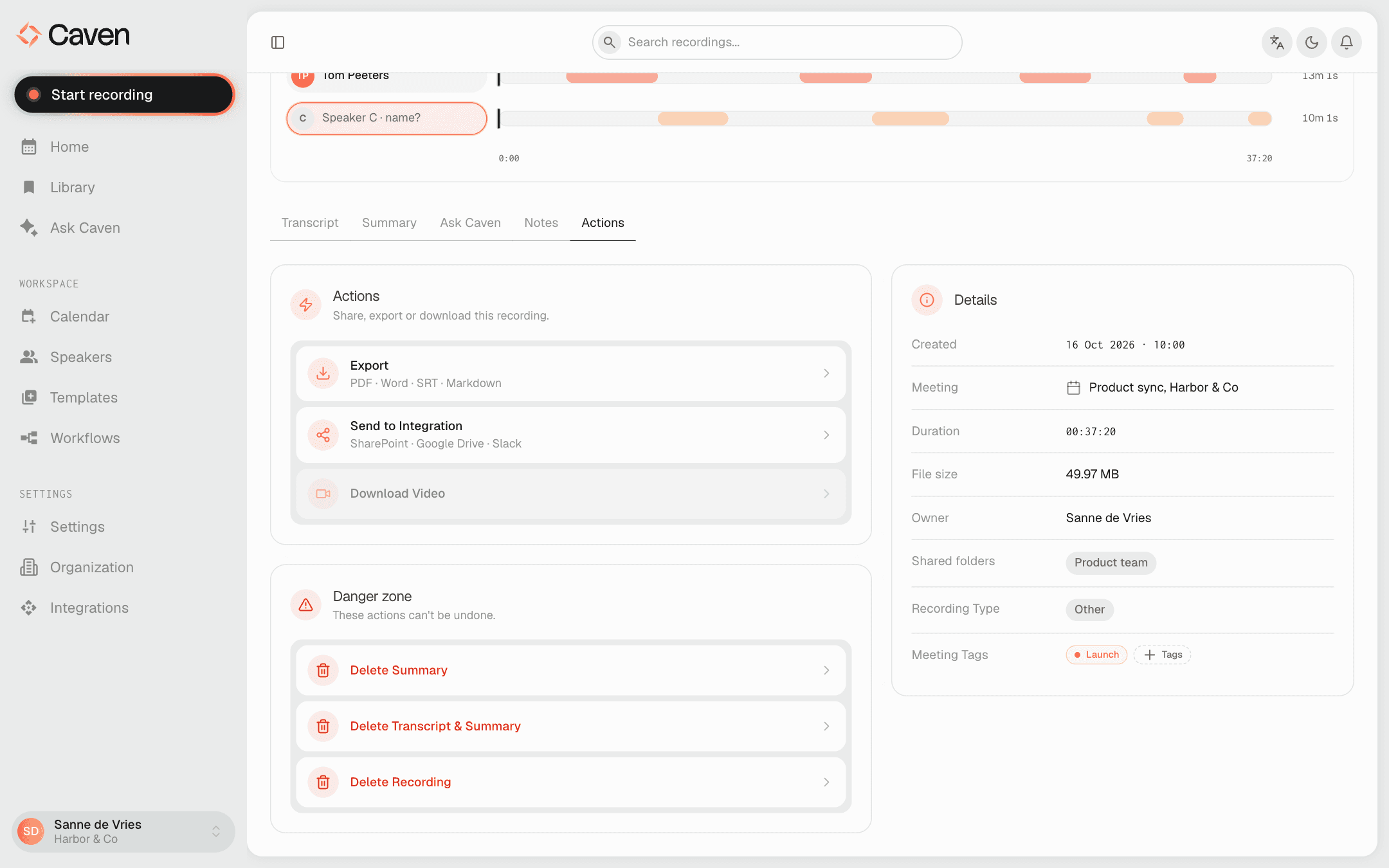 The Actions tab with Export, Send to Integration, Download Video, and Trim clip, the Danger zone below, and the recording details next to it
Next to the actions, the tab shows the recording's details (date, linked meeting, duration, owner, shared folders, type, and tags). If a workflow ran after the recording, the Automatic workflow card shows what it did, step by step, for example whether Automatic Forwarding and the email after the meeting succeeded.
Generate a summary
If the recording has a transcript but no summary yet, Generate Summary creates one.
Download the video
Download Video saves the original recording file to your computer.
Trim the recording
Trim clip opens an editor where you set a start and end point and keep only that segment.
Export a transcript or summary
Export downloads the transcript, the summary, or both as files. You also find Export in the Summary tab and in the transcript's menu. Pick what to include, then a format:
| Content | Formats |
|---|---|
| Transcript | PDF, Word, plain text, SRT, WebVTT, JSON |
| Summary | PDF, Word, Markdown, JSON |
When you select both, you can choose PDF, Word, or JSON, and Caven downloads 2 separate files.
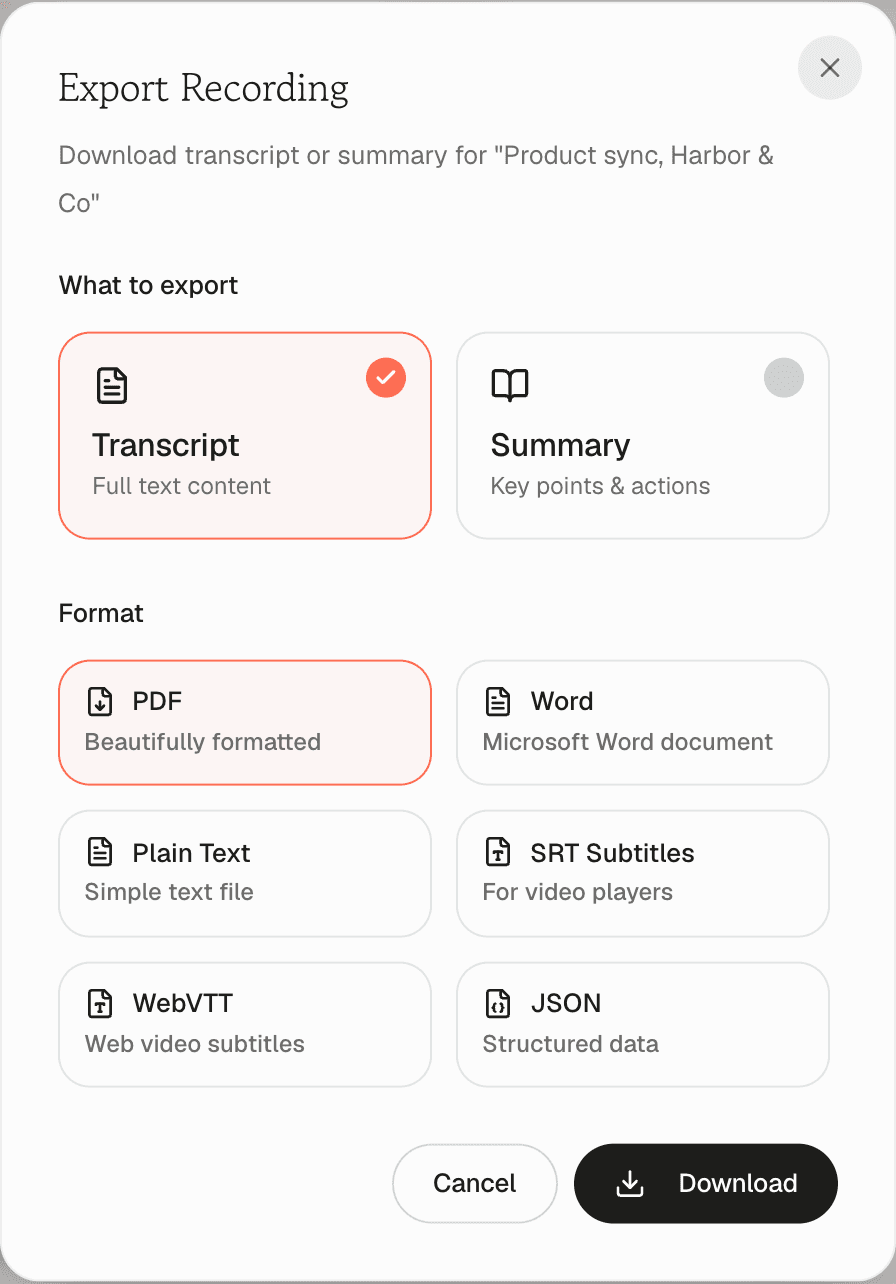 The Export dialog with Transcript and Summary to choose from and the available formats
Send to an integration
Send to Integration pushes content to a connected storage tool.
- Choose what to send: Transcript, Summary, Notes, Video, or a combination.
- Choose the destination: Google Drive, OneDrive, or SharePoint.
- Pick a file format for each item.
- Browse to a folder, or use the default Caven folder.
- Click Send.
The destination only appears here after you connect it under Integrations in the sidebar, see Integrations. To push content automatically after every meeting instead of by hand, use Workflows.
Resend the email
Resend email sends the email after the meeting again. It only appears if that email went out for this recording before.
Delete
Three levels, from least to most destructive, in the Danger zone:
| Action | Effect |
|---|---|
| Delete Summary | Removes the AI summary only. The transcript and video stay. |
| Delete Transcript & Summary | Removes both. The video stays. |
| Delete Recording | Moves the whole recording to Trash, where you can restore it. Tick the permanent option to skip Trash and delete it for good. |
You need edit rights on the recording to delete its summary or transcript. Only the owner can delete the recording itself.
Deleting a summary or transcript lets you regenerate it from scratch afterwards.