
Account & settings
AI assistants
Connect Claude, ChatGPT, Copilot or Gemini to your Caven meetings
You can connect an AI assistant such as Claude, ChatGPT, Microsoft Copilot or Google Gemini to Caven. The assistant can then search your meetings and read their transcripts, summaries and action items, so you can ask it about your meetings in the tool you already use. The connection uses the Model Context Protocol (MCP), an open standard for linking AI assistants to other apps.
Where to find it
Open Settings and go to the MCP Server tab. Every user has it. The tab shows:
- The MCP server URL:
https://api.caven.io/mcp, with a button to copy it. - Quick setup by app: step-by-step instructions for Claude, ChatGPT, Microsoft Copilot and Google Gemini.
- The tools the assistant gets, and example prompts you can click to copy.
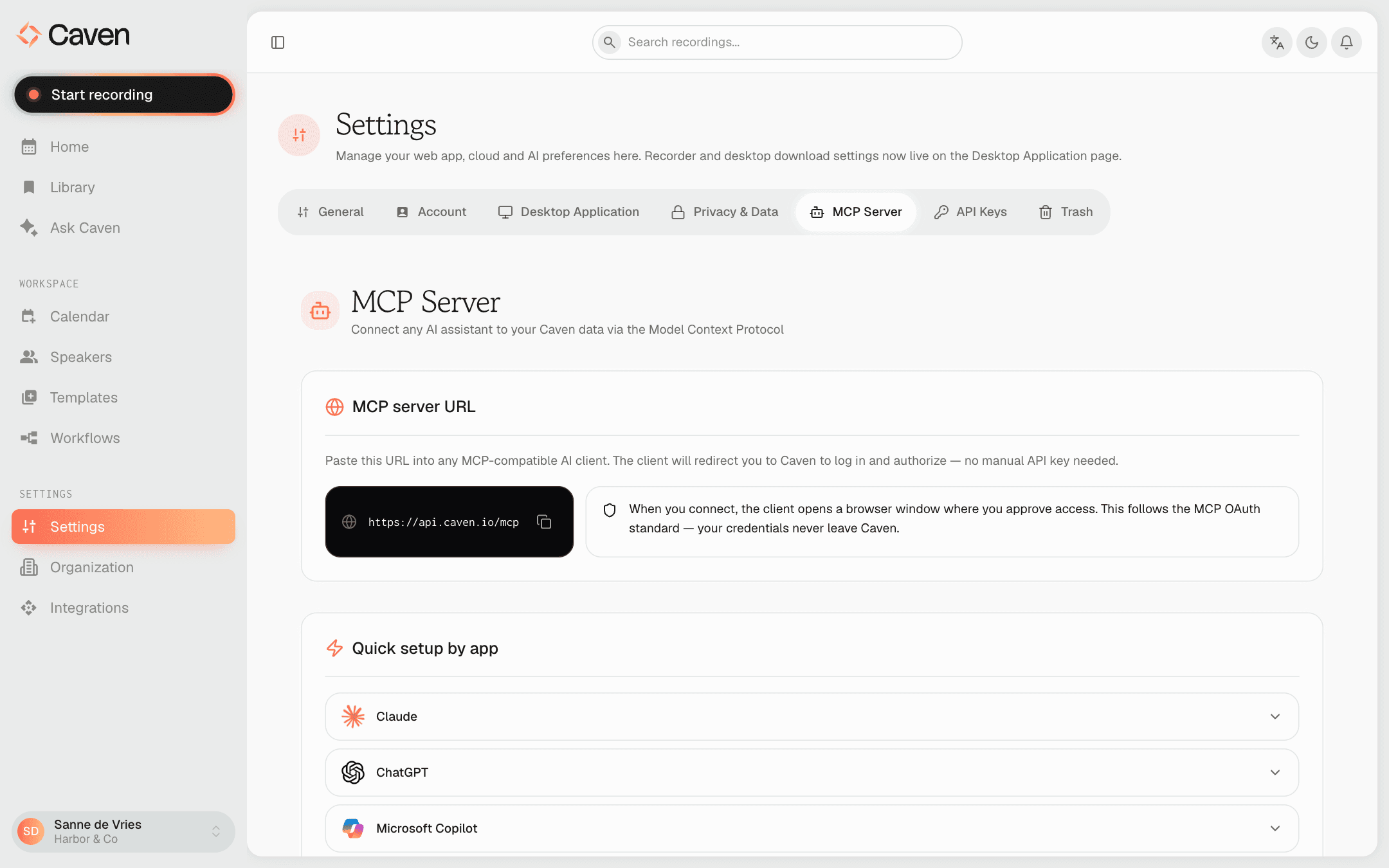 Settings, MCP Server tab: the server URL and the setup steps per assistant
You never paste an API key. When you connect, the assistant opens a browser window where you sign in to Caven and approve access.
Connect your assistant
Claude
- Open Claude and go to Settings → Connectors → Add custom connector.
- Paste the MCP server URL into the URL field and give the connector a name, for example "Caven".
- A browser window opens. Sign in to Caven and click Authorize.
ChatGPT
- Open ChatGPT in your browser and go to Settings → Security and login. Turn on Developer mode there.
- Go to Plugins and click the + button. Enter a name (for example "Caven") and a description, then paste the MCP server URL under Connection.
- Choose OAuth as the authentication method. A browser window opens: sign in to Caven and click Authorize.
Microsoft Copilot
- Go to copilotstudio.microsoft.com and open the agent you want to use, or create a new one.
- Go to Actions → Add an action → MCP server and paste the URL.
- A browser window opens. Sign in to Caven and click Authorize. The agent now has access to your meeting data.
Google Gemini
- Go to gemini.google.com, click your profile picture in the top right and open Settings.
- Go to the Extensions tab, then Manage connectors → Add connector, and paste the URL.
- A browser window opens. Sign in to Caven and click Authorize.
Other MCP-compatible apps work the same way: add the server URL and approve access in the browser.
Approving access
The Caven consent page, Authorize access, shows which account you are signed in with and what the assistant will be able to read. Click Authorize to connect, or Deny to cancel.
The access is read-only: the assistant can read your data but never change it. Each approval creates an API key for that assistant. Organization admins can see and revoke these keys under Settings → API Keys.
What the assistant can do
Once connected, the assistant can:
- search the content of your meetings: titles, transcripts and summaries
- list and read recordings, transcripts, summaries and action items
- look up speakers, tags, folders and teams
- read basic information about your organization
It also gets a few ready-made prompts: a weekly meeting digest, draft a follow-up for one meeting, review open action items, and find a meeting about a topic. Or just ask in your own words, for example:
- "What were the action items from yesterday's standup?"
- "Summarize the key decisions from this week's meetings."
- "Find recordings mentioning the Q4 budget."
What it can see
The assistant follows the same access rules as the web app:
- By default it works with your own recordings. It reads recordings that colleagues shared with you only when you ask about shared meetings.
- Teams and folders: you see the ones you belong to or can open; organization admins see all of them.
- The organization's member list and full organization profile are only available to organization admins.
- It never gets the audio or video of a recording, only the text.
Building your own integration
To work with Caven from your own code instead of an AI assistant, use the Caven API with API keys. See the API overview.