
For admins
Plans & billing
Pro and Enterprise, the free pilot, buying seats, invoices and usage
Caven is paid per seat: every member of your organization needs one. Organization admins manage plans, seats and invoices under Organization → Billing.
Plans
There are two plans, Pro and Enterprise. Both are paid per seat, monthly or yearly. Prices are shown in the app when you buy, excluding VAT.
Pro is the full product for your team:
- unlimited meetings
- transcripts and AI summaries with the standard templates
- speaker identification
- Ask Caven and a searchable knowledge base
- Google Drive, OneDrive and SharePoint
- the desktop and mobile apps
- 100 GB storage per user
Enterprise is everything in Pro, plus:
- your own summary templates: create them, generate them with AI and share them (see Templates)
- teams and shared folders, with My recordings and Shared recordings tabs in the Library (see Finding recordings)
- sharing tags with your team (see Tags)
- SSO with Google and Microsoft, and security policies such as enforced MFA
- meeting settings and integration policy for the whole organization
- company branding on summaries and exports (see Branding)
- 500 GB storage per user
- priority support
Free pilot
A new organization can start a free pilot from the Caven website. The pilot lasts 14 days, gives you and your colleagues every Enterprise feature, and needs no payment details.
During the pilot, a Pilot chip in the web app shows how many days are left. Click it to see the end date. Near the end, a bar at the top reminds everyone when the pilot ends.
After the pilot, Caven continues on Pro or Enterprise. An admin can choose a plan at any time with Choose a subscription or Upgrade. Buying seats ends the pilot right away and moves your members onto the paid seats. If you choose Pro, the Enterprise features (such as SSO, teams, branding and on-premise hosting) stop.
Without a subscription, access stops for everyone in your organization when the pilot ends. Admins then see Your free pilot has ended with the option to buy seats; members are asked to contact their admin. Access comes back as soon as the payment goes through.
Buying a plan
You can buy Pro or Enterprise straight from the Caven website: you create your account first, then pay securely via Stripe. Or, as an admin, click Buy seats (or Choose a subscription) under Organization → Billing:
- Pick the plan and Monthly or Yearly billing.
- Set the number of seats. The dialog suggests one per member.
- Check the summary and click Continue to payment. You pay securely via Stripe.
At checkout you can enter your company's VAT number. Prices exclude VAT; the right VAT is added on the invoice.
Organization → Billing
The Billing tab is for organization admins. At the top you see the plan and four numbers: Seats purchased, Assigned, Free and Without license.
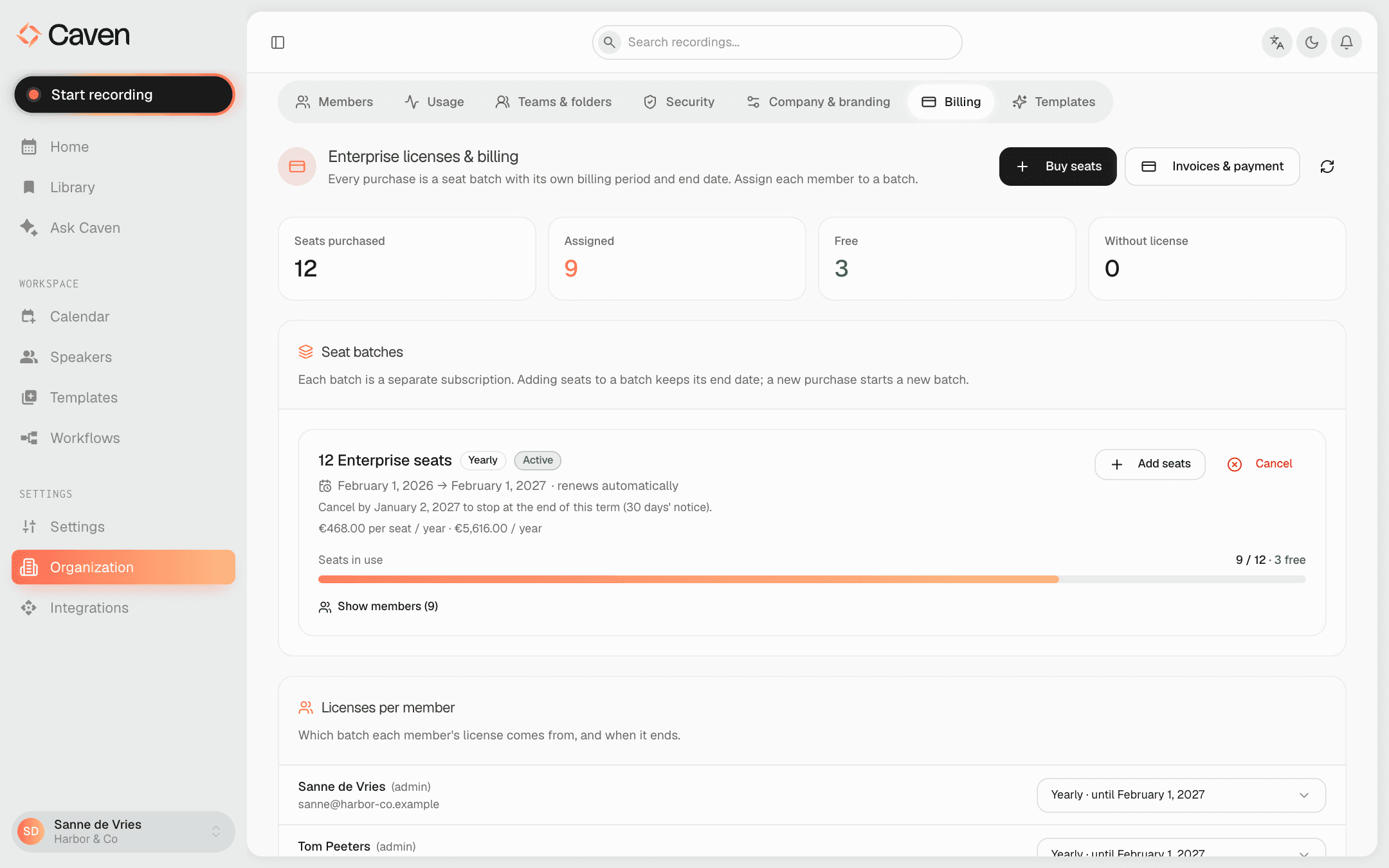 Organization, Billing tab, with the plan, the seat counts and the seat batches
Seat batches
Every purchase is a seat batch: a separate subscription with its own billing period and end date. On a batch you can:
- Add seats: the new seats end on the same date as the rest of the batch and are charged pro rata now.
- Cancel: the seats stay usable until the end of the term and are not renewed after that. Yearly batches have a 30-day notice period and monthly batches 7 days; if the renewal falls within that period, the batch renews once more first. Until the end date you can withdraw the cancellation with Keep renewing.
A new purchase always starts a new batch.
Licenses per member
Licenses per member shows which batch each member's seat comes from and when it ends. When you buy seats, they are assigned automatically to members who are waiting for one. If some members are still without a license and there are free seats, click Assign automatically. Without free seats, buy more.
A member without a license cannot use Caven and is asked to contact their admin.
Invoices and payment
Invoices & payment opens the Stripe billing portal. There you download invoices and update your payment method, billing address and VAT number.
Upgrading to Enterprise
On Pro, click Upgrade to Enterprise. All your Pro seats move to Enterprise right away, and each batch keeps its billing period and end date. You pay the difference pro rata now, charged to the payment method on file, and the Enterprise price applies from the next renewal. Downgrading is not possible.
Organization → Usage
The Usage tab shows who in your organization is recording, and how often: active people per day, meetings per week and per weekday (Monday through Friday), and a table per person with their license, onboarding status, whether they installed the desktop app, and their first and last recording. See Managing your organization.