
Account & settings
Integrations
Connecting Caven to your calendar, storage, and other tools
Integrations connect Caven to tools you already use. Manage them under Integrations in the sidebar.
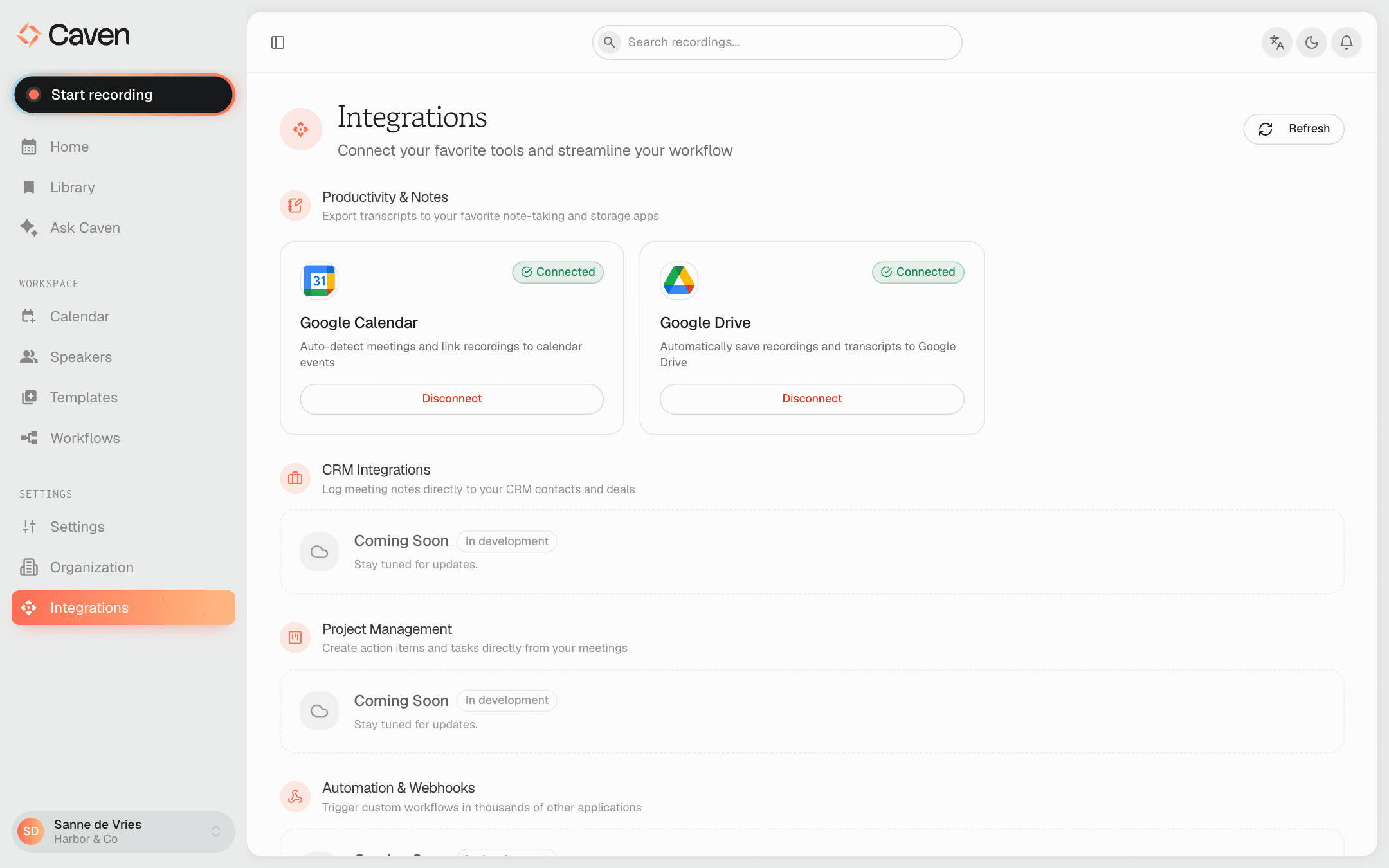 The Integrations page with Google Calendar connected in the Productivity & Notes group
What they are for
| Type | What it is for |
|---|---|
| Calendar | Meeting detection, attendee suggestions, linking recordings to events. See Calendar |
| Storage | Sending transcripts and summaries to a drive. See The Actions tab and Workflows |
Available now
Every tool you can connect sits in one group, Productivity & Notes:
- Calendar: Google Calendar, Outlook Calendar
- Storage: Google Drive, OneDrive, SharePoint
Not connectable yet
These show on the page but cannot be connected today:
- Notion, Slack, Dropbox, Microsoft Teams, and iManage appear as disabled cards in Productivity & Notes.
- CRM Integrations (logging notes against contacts and deals), Project Management (turning action items into tasks), Automation & Webhooks (triggering other tools), Communication (summaries in your team chat), and AI & Transcription are groups marked Coming Soon, with no individual tools to connect yet.
Connecting
Click Connect on an integration. Caven takes you to the provider's sign-in page in the same tab, and brings you back to the Integrations page once you have authorized it. Integrations use OAuth, so Caven never sees your password.
Disconnect at any time from the same page. Disconnecting stops future syncs but does not remove anything Caven already sent.
Integrations from your organization
Your organization can connect an integration for everyone. It then shows an Organization badge and the button reads Managed by organization: you use it like your own connection, but you cannot disconnect it.
Your organization admin can also block personal connections. In that case you can only use the integrations your organization connected, and a note at the top of the page tells you so.
What they power
- A connected calendar drives meeting detection and the attendee suggestions during speaker assignment.
- A connected storage tool becomes a destination in Send to integration and in Workflows.
To connect an AI assistant such as Claude or ChatGPT to your meetings, see AI assistants. That works through Settings → MCP Server, not through this page.