
Working with recordings
Home
Your start page in the web app, with Smart To-Dos, upcoming meetings and recent recordings
Home is the first page you see in the web app. It shows where you stand, what is coming up, and what needs your attention.
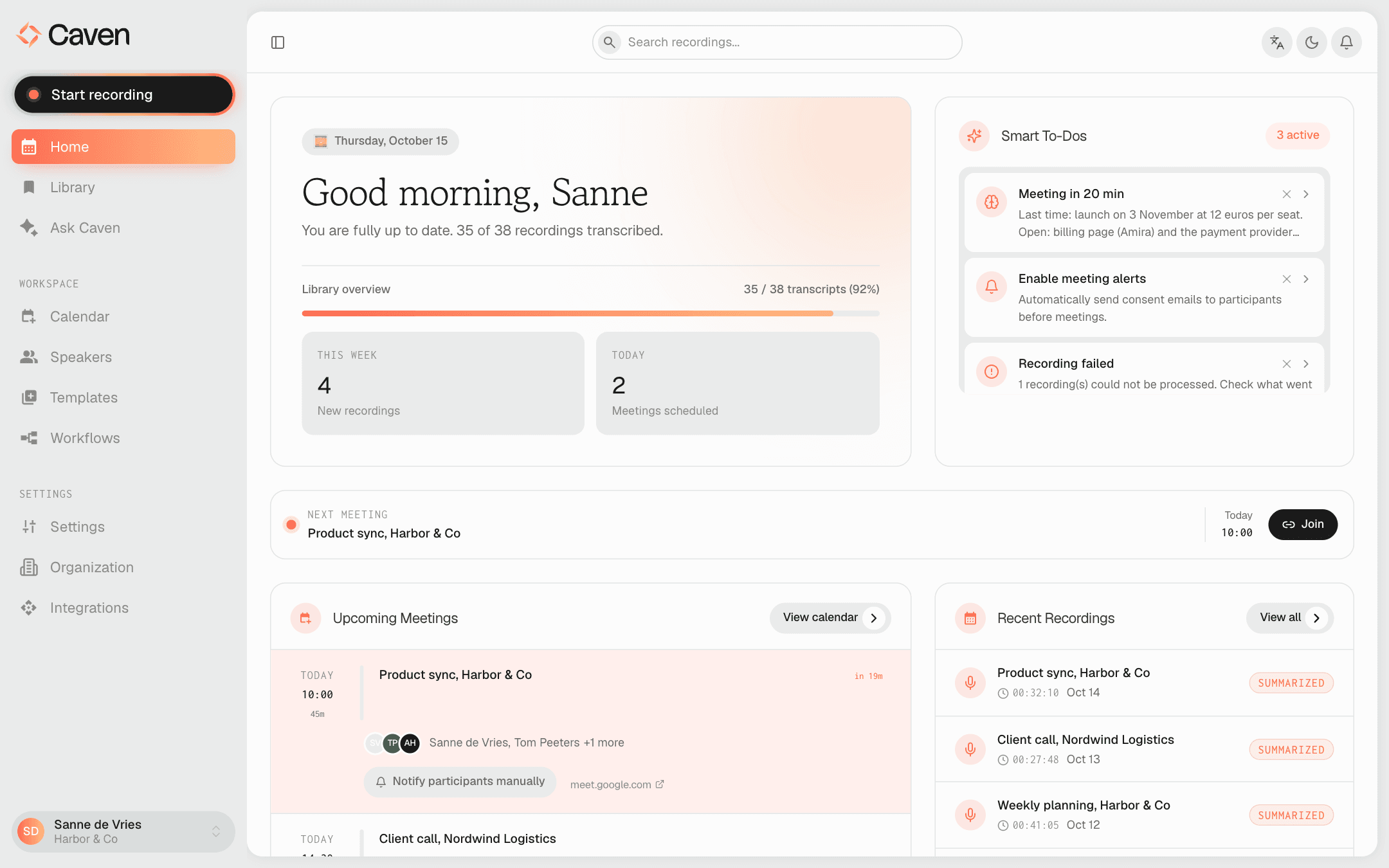 The Home page: a greeting with the date and the Library overview, Smart To-Dos with a pre-call prep card, a suggestion to turn on meeting alerts and a failed recording, upcoming meetings and recent recordings
Greeting and Library overview
At the top left, Caven greets you with today's date and tells you how many of your recordings are transcribed. The Library overview below it shows a progress bar of transcribed recordings and two tiles:
- This week: how many recordings you made in the last 7 days. Click it to open the Library.
- Today: how many meetings are on your calendar today. Click it to open the Calendar. Without a connected calendar, this tile shows Connect calendar instead.
If you skipped part of the setup wizard, a Complete your account settings banner sits at the very top. Click Complete now to go back to it.
Smart To-Dos
The Smart To-Dos panel on the right lists things that need you, one card each. The number of active cards shows next to the title. Click a card to go straight to the right place. Cards you may see:
- Recording failed: one or more recordings could not be processed. Check now opens the failed recordings in the Library.
- Connect your calendar: opens Integrations.
- Identify speakers: recordings with speakers that still need a name. Opens the unresolved speakers on the Speakers page.
- Start your first transcription: you have recordings, but none is transcribed yet.
- Suggestions to automate your work, such as Enable auto-transcribe, Turn on auto-summarize, Auto-email meeting recaps, Turn on auto-export for a connected integration, or Enable meeting alerts to send consent emails before meetings.
- Automate "[meeting]": a meeting you recorded several times in the last 30 days, with a suggestion to turn on transcription, summary and email for it. Opens Workflows.
- Pre-call prep: see below.
When nothing needs you, the panel shows You're all set!.
Dismissing and snoozing a card
Click the X on a card and choose how long to hide it: Snooze 1 day, Snooze 1 week or Snooze 30 days. Snooze forever hides it for good after you confirm. A snoozed card comes back when its time is up, if it still applies.
Pre-call prep
About 30 minutes before a meeting with someone you have met before in a recorded meeting, a card Meeting in N min appears. Click it to open the summary of your last meeting with that person, so you can check what was said and which action items are still open before you join.
Pre-call prep needs a connected calendar.
Next meeting and Upcoming Meetings
When a meeting is coming up, a Next meeting bar shows its title and start time, with a Join button if the invite has a meeting link.
The Upcoming Meetings card lists your calendar meetings for the next 7 days. Meetings starting within 30 minutes are highlighted. Each meeting shows its attendees, a Join link, and a Notify participants manually button that sends the consent email to the attendees right away. View calendar opens the Calendar. Without a connected calendar, the card offers Connect calendar.
Recent Recordings and Quick Actions
Recent Recordings shows your four newest recordings with their duration, date and status. Click one to open it, or View all to open the Library.
Quick Actions has shortcuts to View Library, Open Calendar, Manage Integrations and Settings.