
Recording
Assigning speakers
Putting names to voices in a recording, and how Caven remembers them
After a recording uploads, Caven splits it into speakers (Speaker A, Speaker B, and so on). Naming them does not hold anything up: the transcript and the automatic summary are made right away, with unnamed voices shown as Speaker A, Speaker B. When you name a speaker later, Caven writes the real name into the existing summary (overview, sections, tasks and their owners) without generating it again.
The Who spoke when card
Open a recording. Under the player sits the Who spoke when card. Each speaker has a row with a name pill, a timeline bar showing when they talked, and their total talk time.
- An unnamed speaker shows as Speaker B · name?. A speaker you skipped shows dismissed.
- The header shows N of M speakers named with a progress bar, and Fully identified once everyone has a name.
- When you open the page, Caven opens the first unnamed speaker for you and plays a clip of their voice.
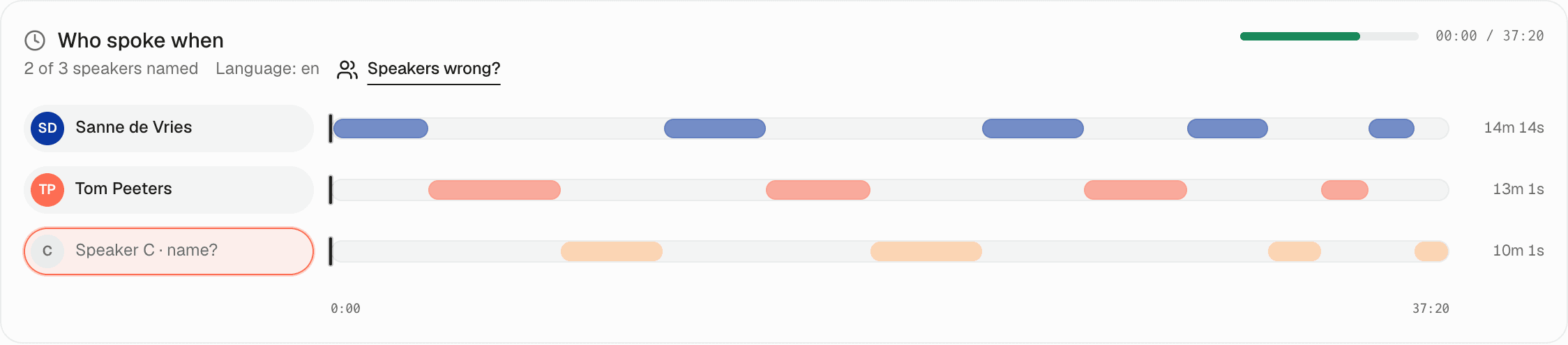 The Who spoke when card under the player: a row per speaker with a timeline bar and talk time, and the header showing how many speakers are named
01Open the name picker
Click a speaker's pill. The picker asks Who is Speaker B? and shows a short excerpt of what they said, with a play button for the clip.
You can also name a speaker from the transcript: unnamed turns have an add name link next to the speaker label.
02Pick or type a name
- Voice match: if Caven recognizes the voice from a saved profile, it shows Sounds like [name] with a percentage. Click Yes to accept it or Not them to reject it. A match with a low percentage asks Are you sure? before it is saved.
- Chips: the participants of the linked calendar meeting and your known speakers appear as chips. Click the right one. Names already given to another speaker in this recording are greyed out. Clicking a calendar participant links the speaker profile that already belongs to that person's email address.
- Type a name or search: type a name, or filter the chips, and click Save.
The picker also shows the linked meeting. If it is the wrong one, click Select other meeting to pick another calendar event and load its participants. No calendar connection, or no attendees? Just type the name.
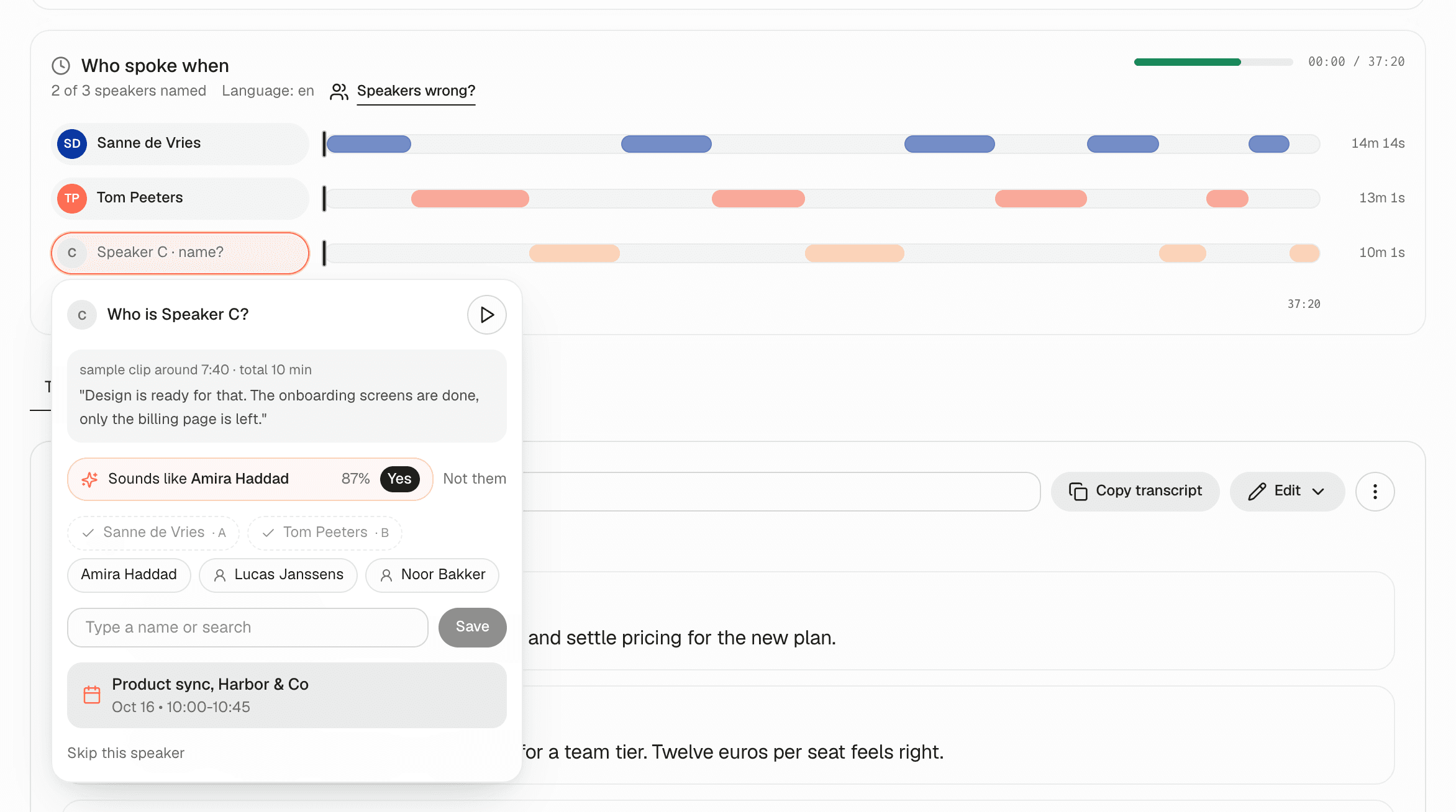 The name picker for Speaker B: an excerpt, a Sounds like suggestion with Yes and Not them, calendar participant chips, and a name field with Save
03Move on to the next speaker
After you save, the picker moves to the next unnamed speaker. To leave a voice for now, click Skip this speaker. Repeat until the card shows Fully identified.
Changing a name later
Click a named pill. The picker opens as Change [name]. Pick or type the new name; Caven asks Change speaker? and saves it after Yes, change.
Speakers wrong?
Sometimes two people are recognized as one speaker, or one person as two. Click Speakers wrong? in the card header, enter the Number of speakers that actually spoke and click Transcribe again.
Transcribing again starts speaker identification over, and manual edits to the transcript are lost. The current transcript stays until the new one is ready. After that you can bring it back with Undo last edit in the transcript's Edit menu.
Speaker profiles
Every speaker you confirm becomes a saved voice profile, so Caven recognizes that person automatically in future recordings. Manage profiles under Speakers in the sidebar. The page has three tabs:
- My speakers: your own profiles, with meeting count, total speaking time, and first and last meeting.
- Organization: profiles shared across your organization (on an organization plan).
- Unresolved speakers: every meeting that still has unnamed speakers. Click Resolve to open that meeting and name them.
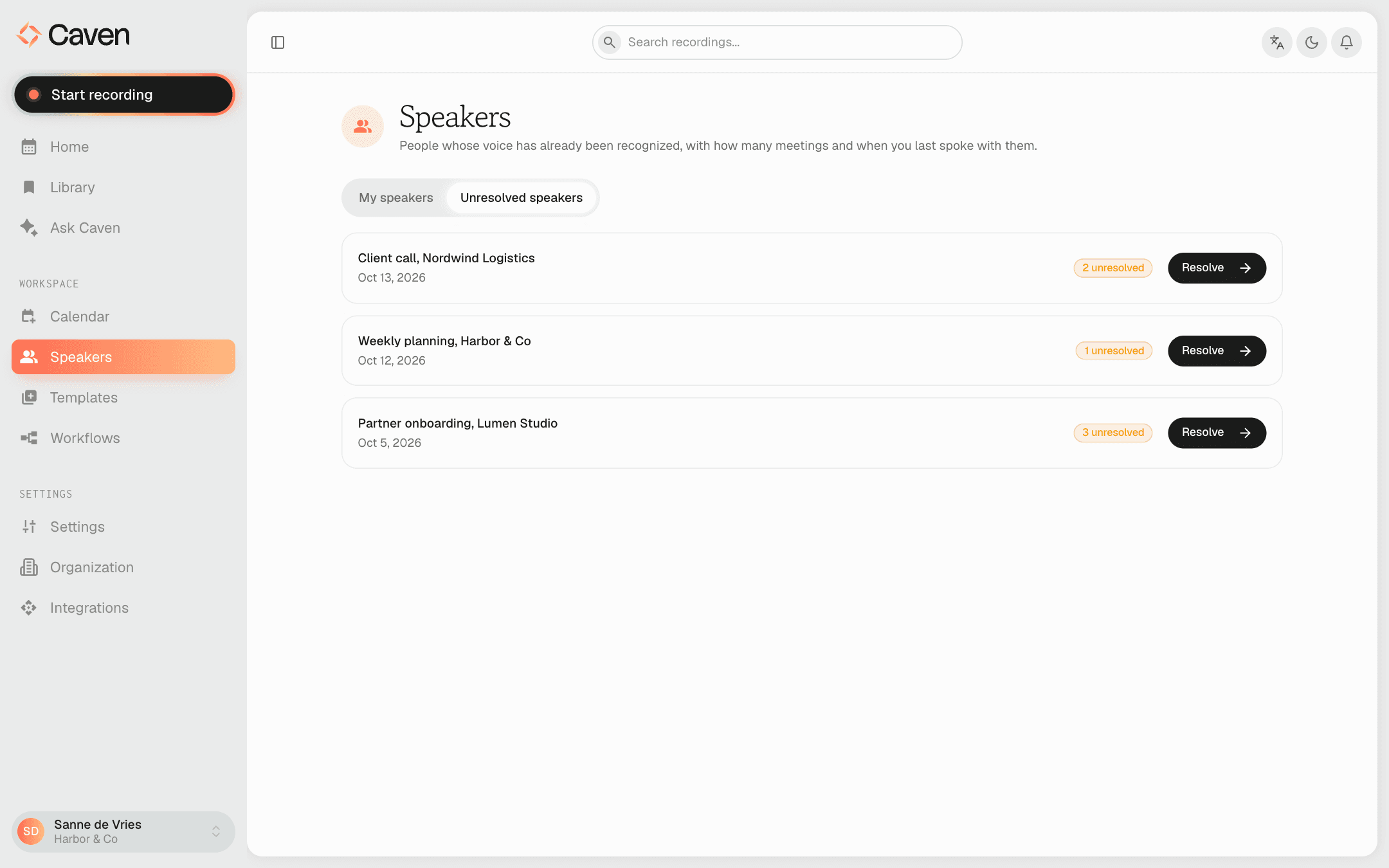 The Speakers page on the Unresolved speakers tab: a list of meetings with unnamed speakers, each with a Resolve button
Open a profile to see its details. From there you can:
- Rename the profile with the pencil icon next to the name
- Merge with... another profile that turned out to be the same person
- Mark it as yourself with This is you
- Jump to all its meetings with View in Library →
- See the speakers this person meets most often, their open action items, and the voice samples per language
Filtering the Library by a speaker shows every recording they appear in.