
Working with recordings
Summary templates
Controlling how meeting summaries are structured
A template defines how a summary is structured: which sections it has, the tone, and what to emphasise. Caven detects the meeting type and applies the matching template automatically.
Enterprise
Creating, editing and sharing your own templates is part of Enterprise. On Pro you see Your own templates are part of Enterprise: you can still add templates from the library and choose which one is your default.
How a template gets chosen
Every template has a classification description that tells Caven when to use it. After transcription, Caven reads the meeting and picks the template whose description fits best. If nothing fits, it uses your default template. Pick it under Choose a default template on the Templates page.
You can always override the choice on a recording by switching the Template in the Summary tab. See Transcripts & summaries.
System templates
Caven ships with a set of built-in templates, tailored to your organization's sector (the industry you picked during onboarding). The meeting types are:
- Internal meeting: only your own people, no external parties
- Client meeting: at least one client present, or work done on a client's behalf
- Counterparty / negotiation: an external counterparty or third party, typical in deals and disputes
- Formal / institutional session: hearings, arbitrations, notarial meetings, board meetings
- Call / informal contact: short, spontaneous calls with no formal agenda
Plus a standard adaptive template that structures any meeting into an overview and a nested, theme-based analysis. It is the default template until you choose another one.
You cannot edit a system template directly. To customise one, create a personal copy.
My Templates and the Template Library
Go to Templates in the sidebar. The page has two tabs:
- My Templates: the templates you use, each with its auto-apply setting.
- Template Library: every template available to you. Filter by All, System, Team or Organization, and click Add to put one in My Templates.
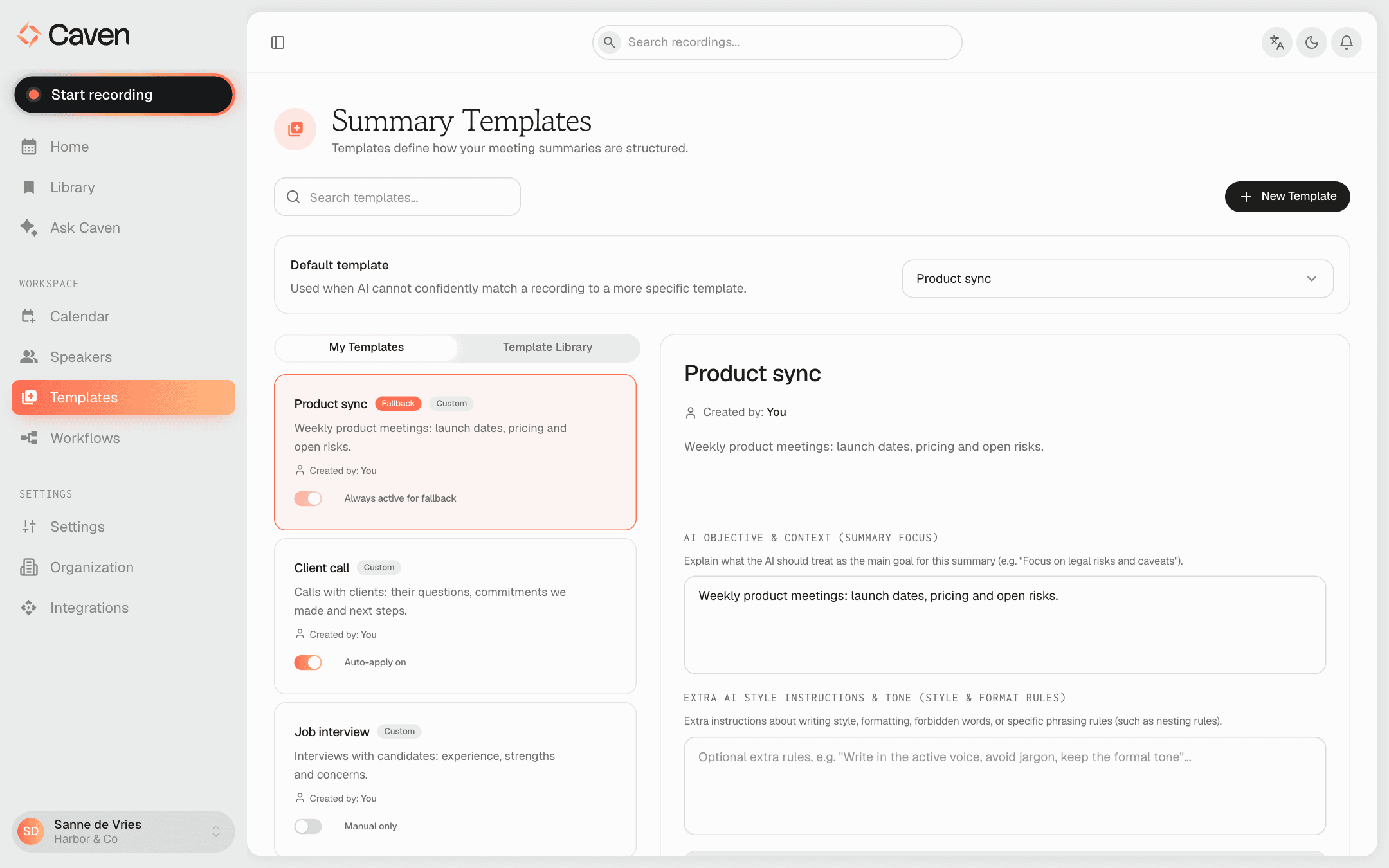 The Templates page on the My Templates tab, with an auto-apply setting next to each template
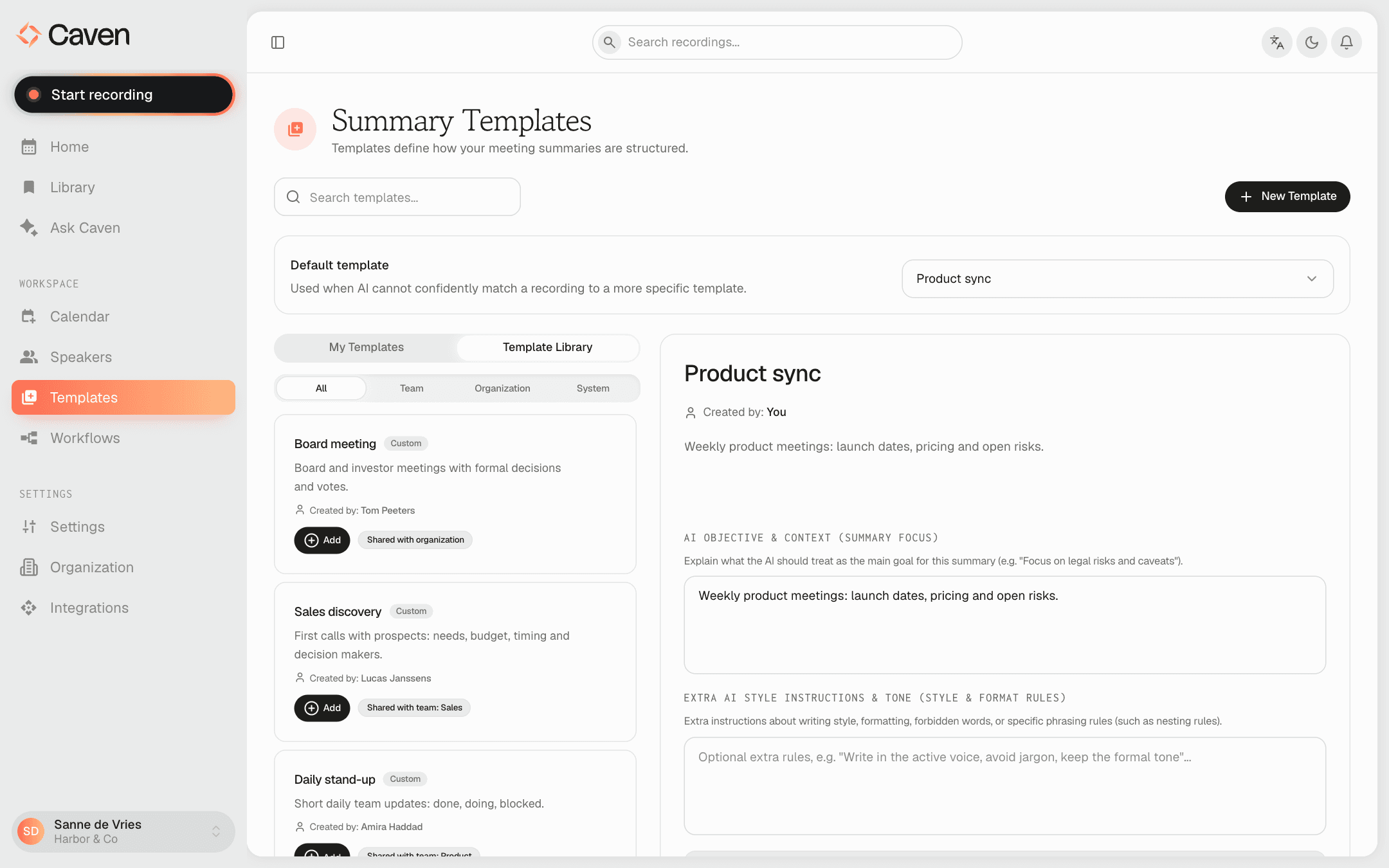 The Template Library tab with the All, System, Team and Organization filters
Creating a template
On the Templates page, click New Template. Choose one of three methods:
- Generate with AI: in Co-create Template with Caven AI, describe the summary you want and Caven builds the template, with a Live Preview next to the chat.
- Manual create template: Start from scratch and define the sections and instructions yourself.
- Upload summary example: upload a PDF, DOCX, Pages or text file of a summary you like, and Caven reverse-engineers a template from it.
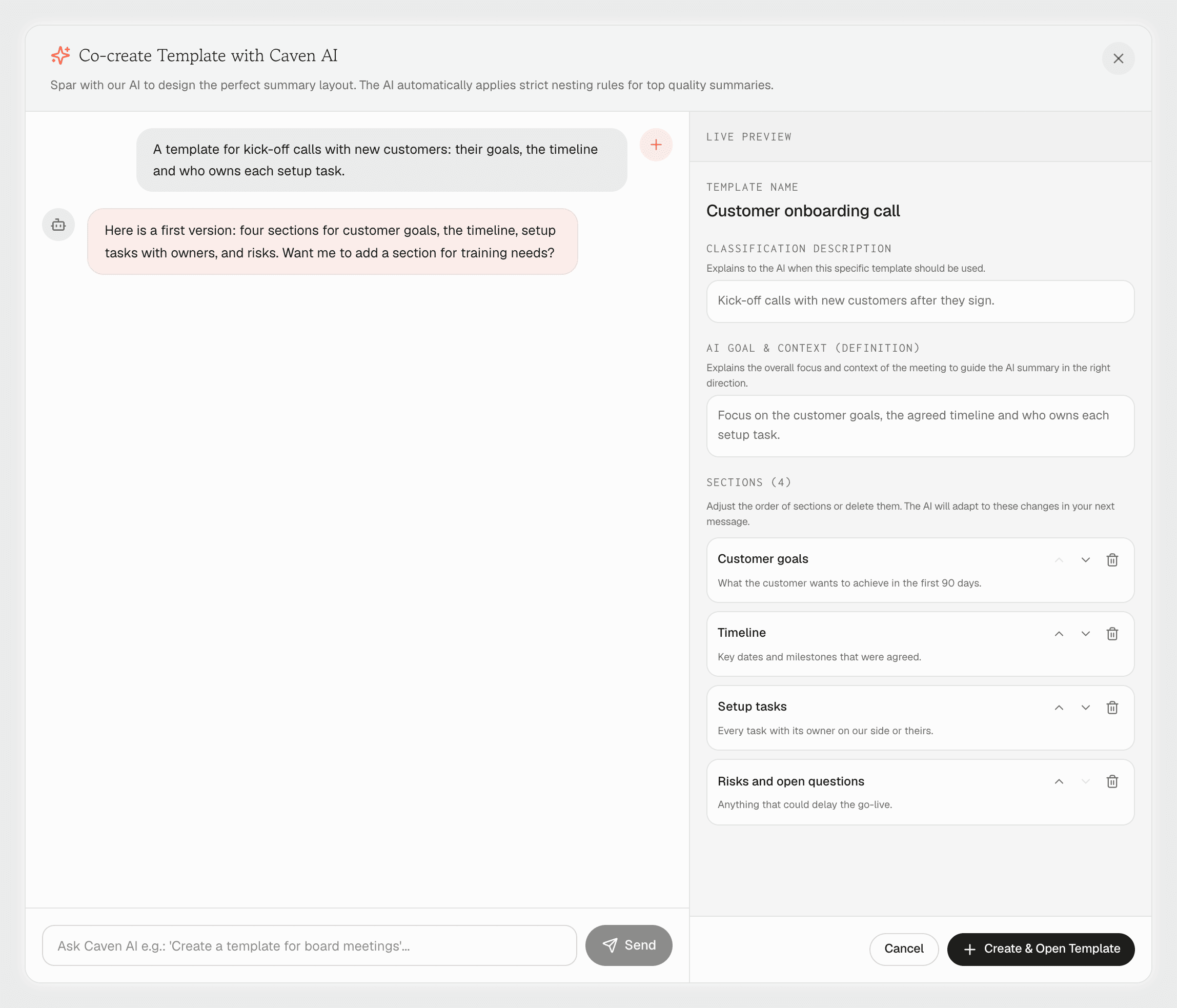 Generate with AI: a chat to describe the template on the left and a live preview on the right
Auto-apply
Each template in My Templates shows Auto-apply on or Manual only. When auto-apply is on, Caven applies that template automatically to every future meeting that matches its type, with no manual selection.
Your default template always keeps auto-apply on (This is your default template, so auto-apply stays on), since it is the catch-all when no other template matches.
A template someone shared with you is never applied automatically until you switch auto-apply on yourself.
If auto-apply is off for a template, you select it by hand from the Summary tab after each recording.
Sharing templates
A template's scope controls who can use it:
- Private: just you
- Team: shared with a team you belong to
- Organization: available to everyone in your organization
Team and organization sharing is set when you create or edit the template.