
Working with recordings
Finding recordings
The Library, filters, search, uploads, and Trash
Every recording, from any device, lands in the Library in the web app. Recordings linked to a calendar event are named after that event. You can also browse your recordings on your phone, see Mobile app.
My recordings and shared recordings
On Enterprise plans, the Library has two tabs: My recordings (recordings you own) and Shared recordings (recordings others shared with you or filed in a shared folder). A recording you own stays in My recordings even after you add it to a shared folder, so teammates can see it without it leaving your library. Assign a recording to a shared folder from its Share button, on the Folders tab, see Sharing.
On Shared recordings, your Shared Folders appear as tiles above the list. Click one to see only its recordings. A breadcrumb above the list takes you back to all shared recordings.
On other plans there are no tabs. If colleagues have shared recordings with you, a scope filter lets you show All, Personal, or Shared team recordings.
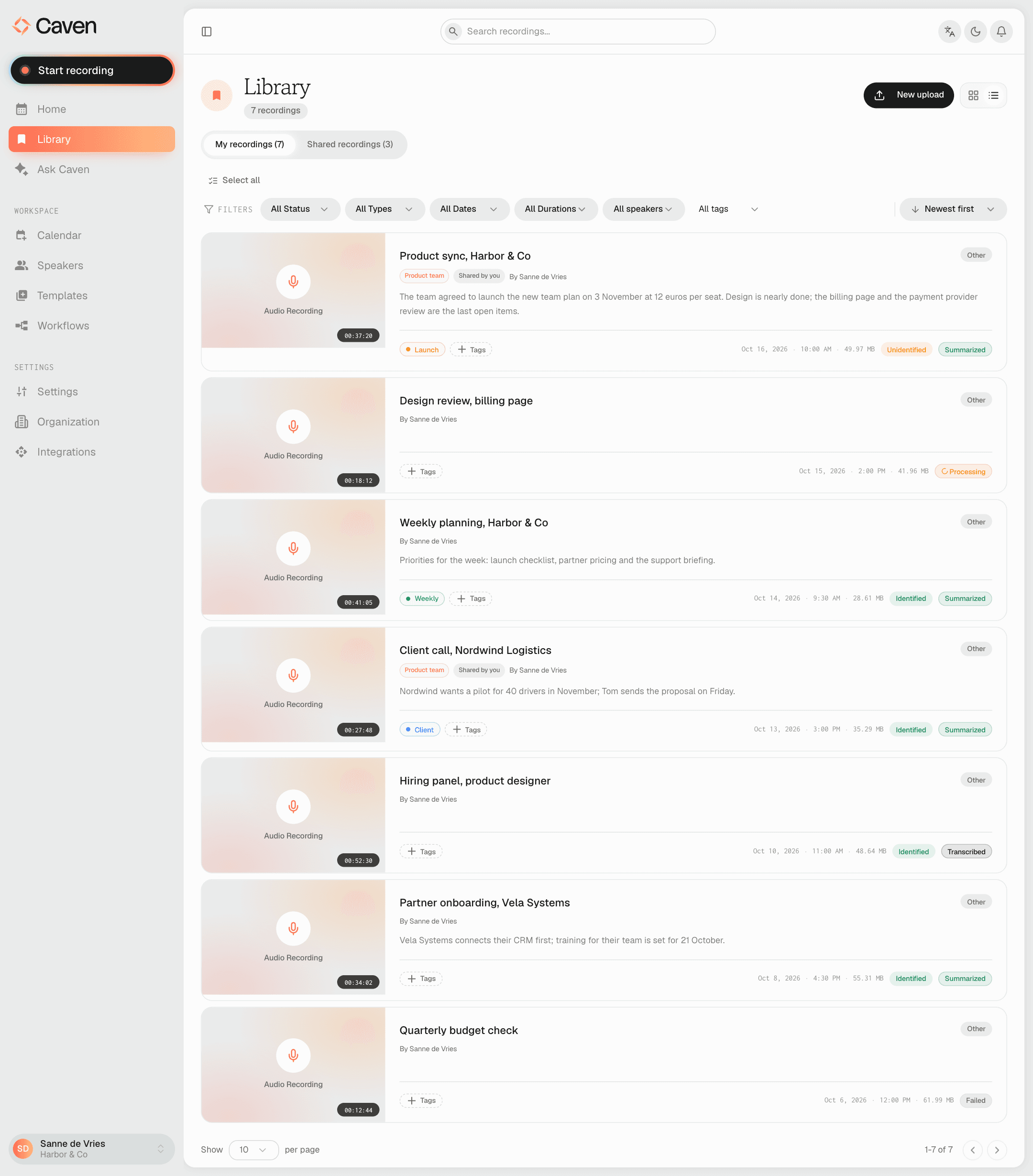 The Library page with the My recordings and Shared recordings tabs, the filter bar, and a list of meetings
Filtering and search
Filter the list by:
- Status: Recorded, Processing, Transcribed, Summarized, or Failed
- Type, date range, and duration: Short (15 minutes or less), Medium (15 to 60 minutes), or Long (over 60 minutes). The duration is read from the media file itself.
- Speaker: every recording a given person appears in. Only on My recordings.
- Tags: include or exclude specific tags. Only on My recordings.
- Owner: only on Shared recordings, to show the recordings of one colleague
- Storage: Caven servers, SharePoint, or On-prem server. Only shown when your organization stores recordings on its own infrastructure, see Privacy & data.
Sort by date, title, or duration. The search box in the top bar searches across your recordings.
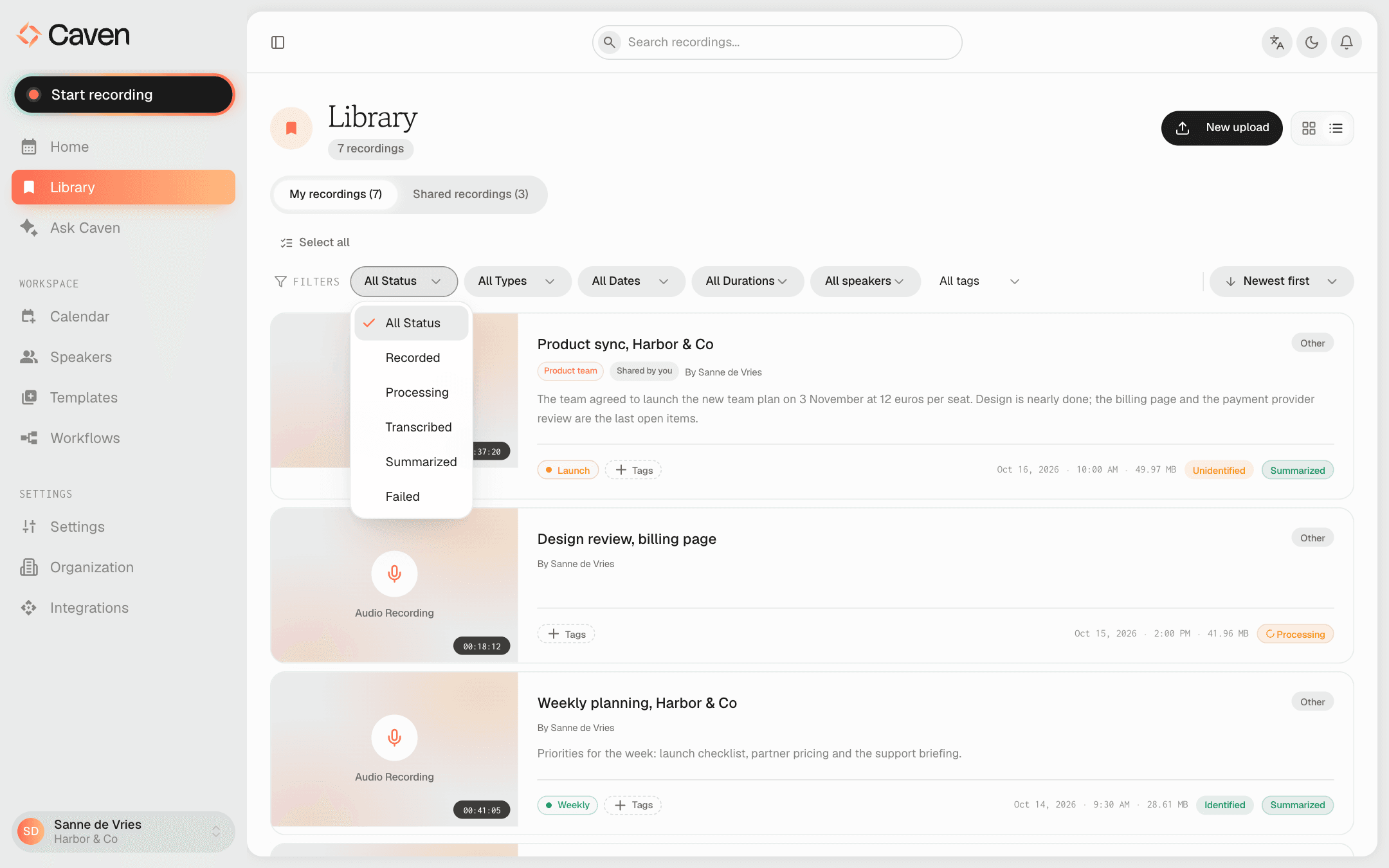 The Library filter bar with the Status, Type, Date, Duration, Speaker, and Tags filters and the sort control
Selecting several recordings
Click Select all to select every recording in view, or tick recordings one by one. With a selection, click Delete to move them all to Trash at once. Only the recordings you own are deleted. If none of the selected recordings are yours, Delete stays greyed out.
Uploading an existing file
You can upload recordings straight into the Library instead of recording them in an app. Caven processes them the same way.
- Click New upload and then Browse folders.
- Choose a folder with your recordings, for example a date folder that Caven Studio saved on your computer.
- Caven lists the meetings it found. Choose the ones you want and click Upload selected meetings.
Each recording needs a main file in .webm or .mp3. A .json metadata file and HLS playback files (.m3u8 with its segments) are optional and are uploaded along with it.
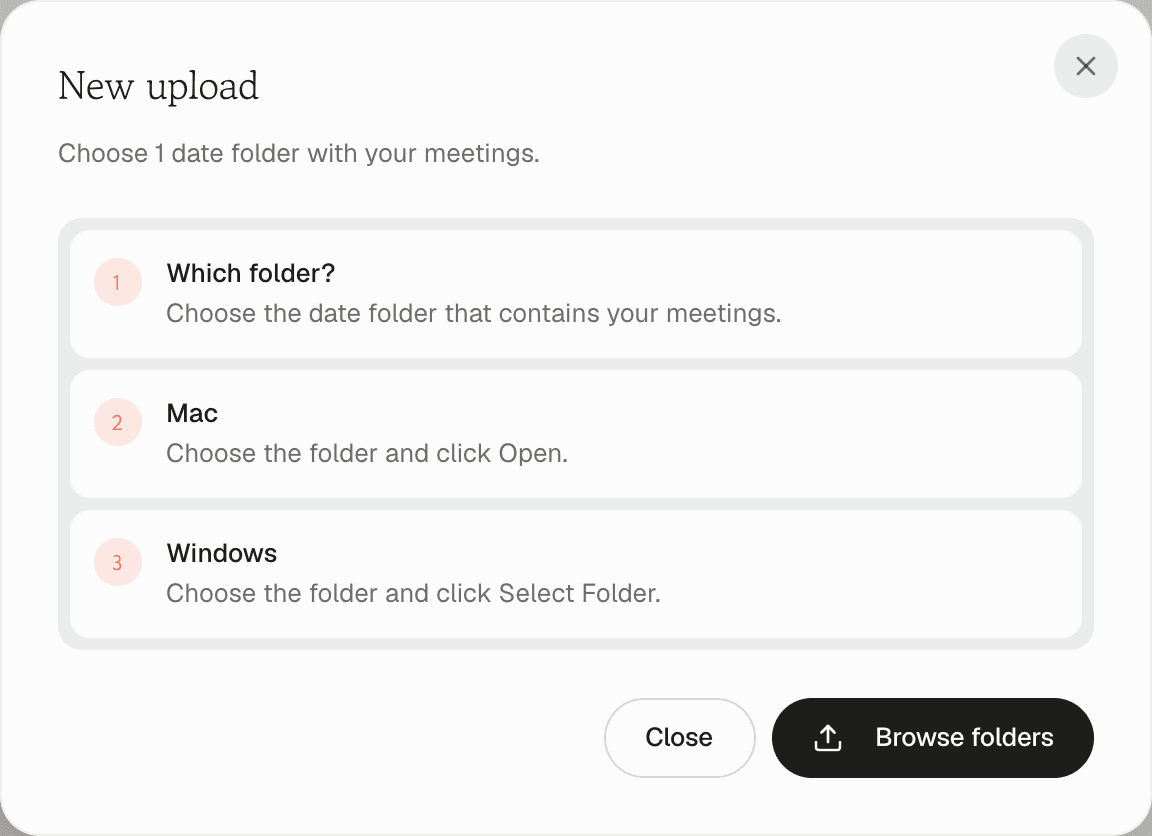 The New upload dialog with steps for choosing a folder on Mac or Windows and the Browse folders button
When an upload stops
If an upload did not finish, the recording page shows Upload paused with what to do next:
- From Caven Studio: open the desktop app. The upload continues where it stopped, and the recording stays on your computer until it is done.
- From the mobile app: open the app. It tries again by itself, and the recording stays on your phone until it is done.
- From the web app: upload the same file again from the same browser to complete the recording.
Trash
Deleting a recording moves it to Trash, under Settings → Trash. There you can Restore a recording, or Permanently delete it right away. Recordings in Trash are deleted for good automatically after 30 days. Choosing the permanent option when you delete skips Trash entirely.
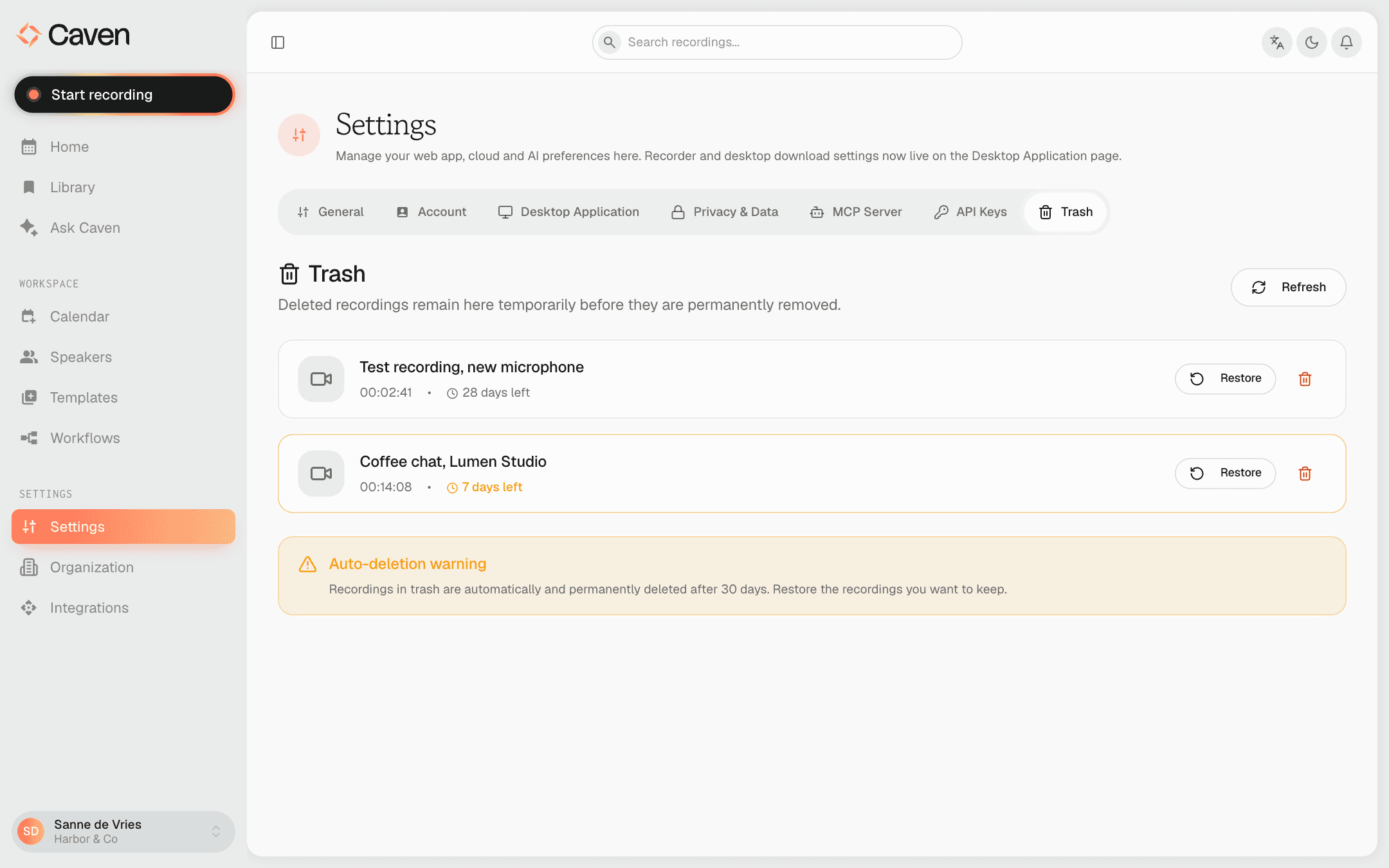 The Trash tab in Settings with a deleted recording, its Restore and Permanently delete buttons, and the 30 day warning