
Working with recordings
Ask Caven
Asking questions about your meetings instead of searching transcripts
Ask Caven answers questions about your meetings. You find it in two places:
- The Ask Caven page in the sidebar: one chat over every recording you can open.
- The Ask Caven tab on a recording: a chat about that one meeting.
The Ask Caven page
Click Ask Caven in the sidebar. Every signed-in user has it. Caven searches the transcripts and summaries of every recording you can open and answers from them.
Questions that work well:
- "What did we decide about the pricing last month?"
- "Which tasks are still open for me?"
- "What did [name] say about the deadline?"
- "Summarize all meetings with [client] this quarter."
Each answer comes with citation chips: small links to the recordings it used. Click one to open that recording at the right moment. If there are many, +N more shows the rest.
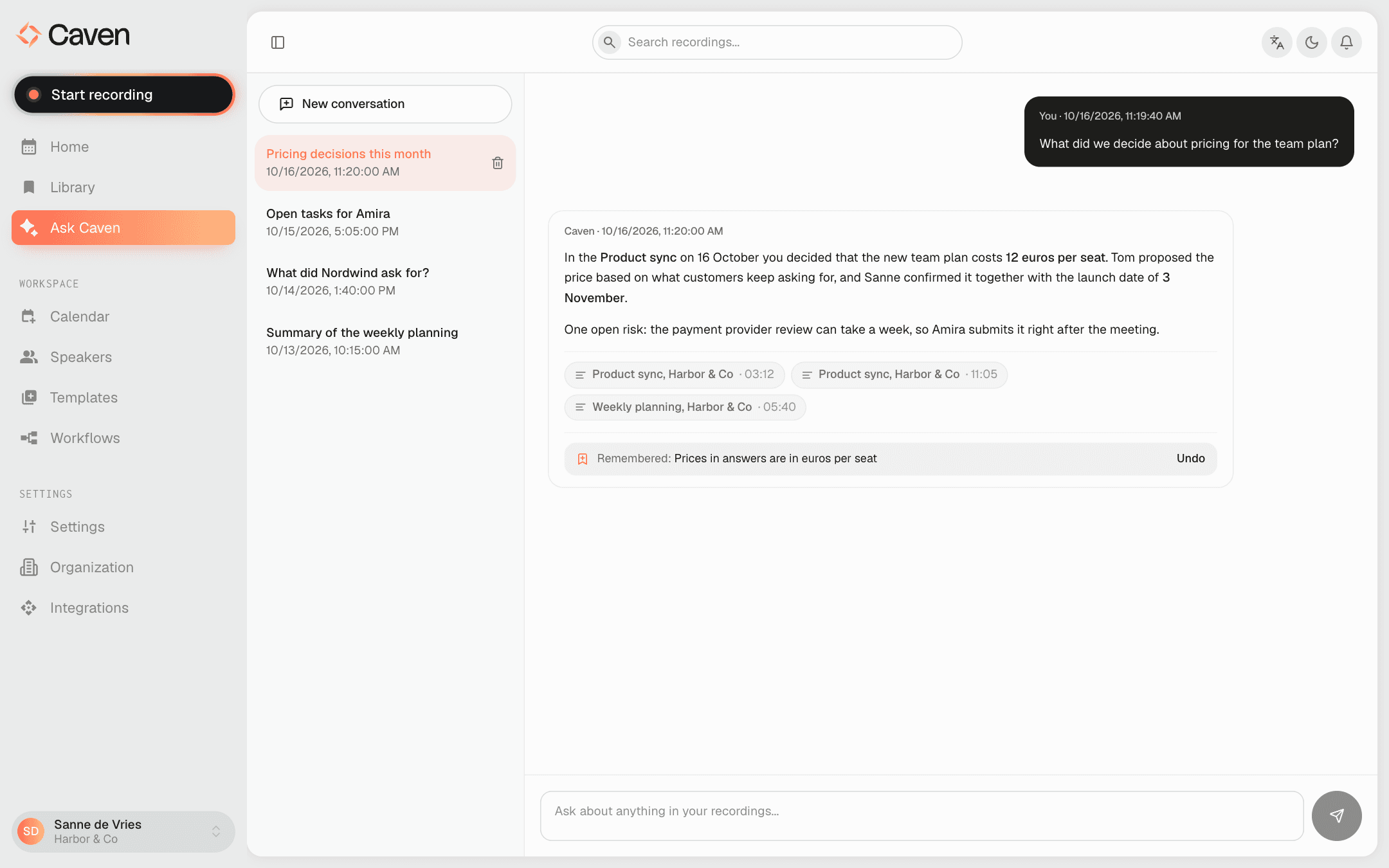 The Ask Caven page: the conversation list on the left, a question and an answer with citation chips, and a Remembered chip with Undo below the answer
Focus a question with @
Type @ in the question box to pick Meetings, Speakers or Tags. Caven then focuses the answer on what you picked, for example one meeting or everything a certain person said.
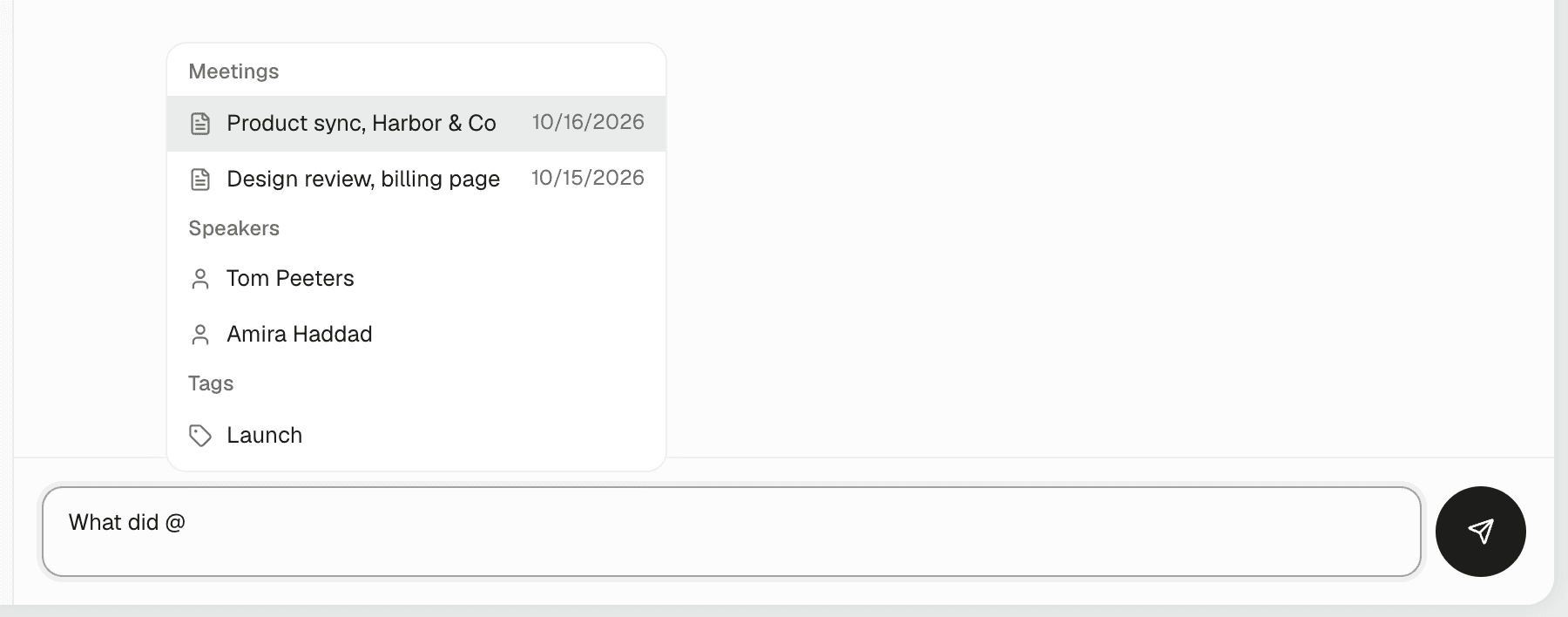 The Ask Caven question box with the @ list open, showing Meetings, Speakers and Tags
Conversations
- Your conversations are saved in the list on the left. Start a fresh one with New conversation, remove one with Delete conversation.
- Under each answer you can Copy it or Regenerate it. Under your own messages, Edit lets you change the question and send it again with Save & submit.
- You can leave the page while Caven is answering. It keeps working in the background, and a dot next to Ask Caven in the sidebar tells you when the answer is ready.
- Caven answers in the language you ask in.
The Ask Caven tab on a recording
Open the Ask Caven tab on a recording and type a question. Press Enter to send, Shift and Enter for a new line.
This chat only answers from that meeting: its transcript, summary and notes, plus the earlier messages in the same chat. It becomes available once the recording has a transcript, summary or notes.
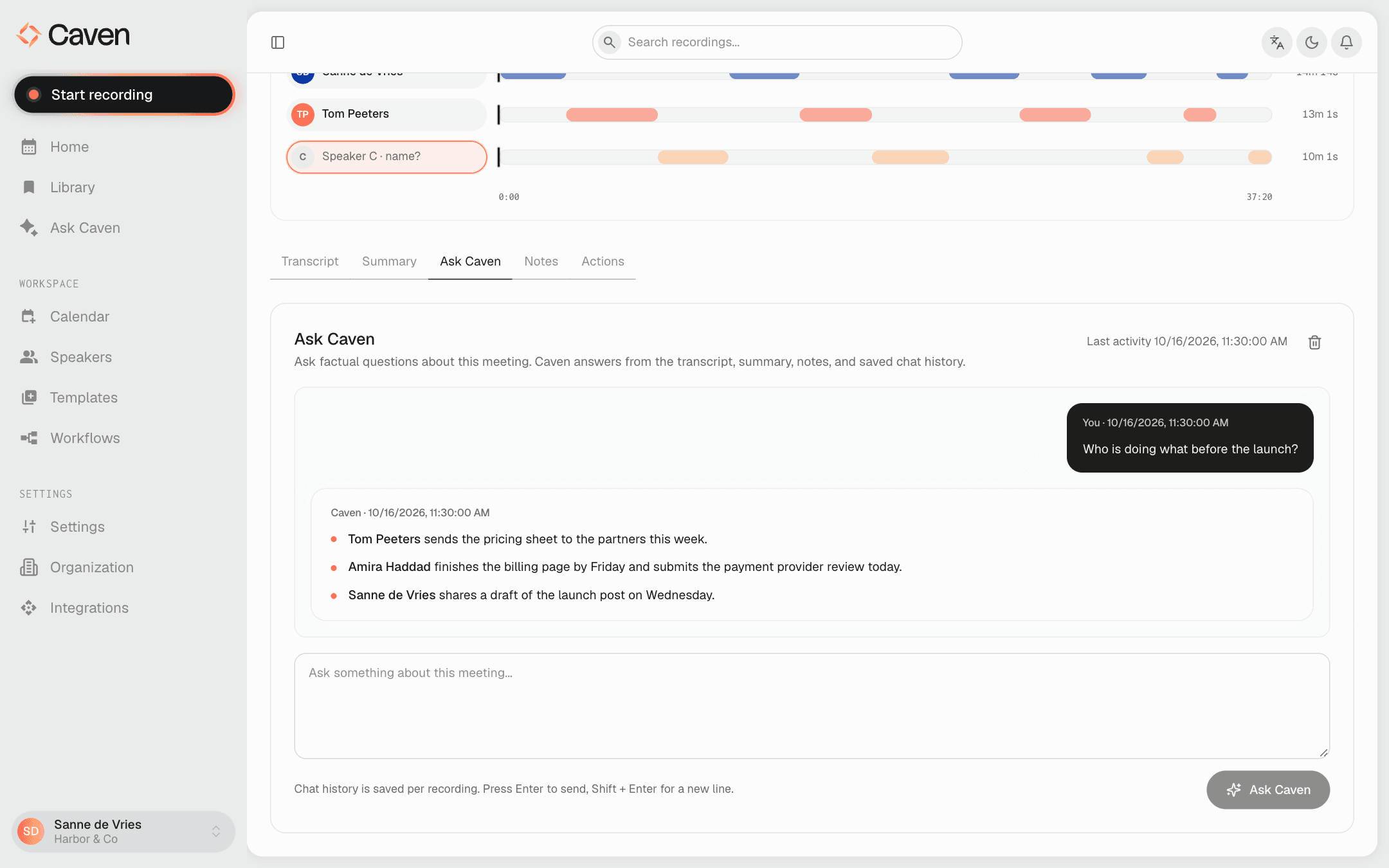 The Ask Caven tab on a recording: a question about the meeting with Caven's answer, and an input box below
The history is saved per recording, so you can come back to it later. Clear it with the trash icon in the tab header.
Teach Caven about you
You can tell Ask Caven things to remember, right in the chat.
- Facts about you: say something like "remember that I lead the sales team". Caven shows a chip Remembered: with what it saved, and Undo to take it back. If you ask it to forget or change something, the chip reads Forgot: or Updated:.
- Spelling: say something like "write Briar as Bryar". Caven shows Spelling rule added: with Undo. A spelling rule also applies to future transcripts and to answers. Changing or removing one shows Spelling rule changed:, Spelling rule turned off: or Spelling rule reversed:.
Preferences about how to answer, such as tone or language, only apply to the current chat. Say that they should apply to every chat if you want Caven to keep them.