
For admins
Branding
Putting your logo, colours, and wording on exported documents and Caven's emails
Branding puts your organization's logo, colours, and wording on the PDFs and Word documents you export, and on the emails Caven sends on your behalf. It is available on Enterprise plans, or for any organization that has custom branding enabled, and only organization admins can configure it.
Where to find it
Organization → Company & branding → Branding.
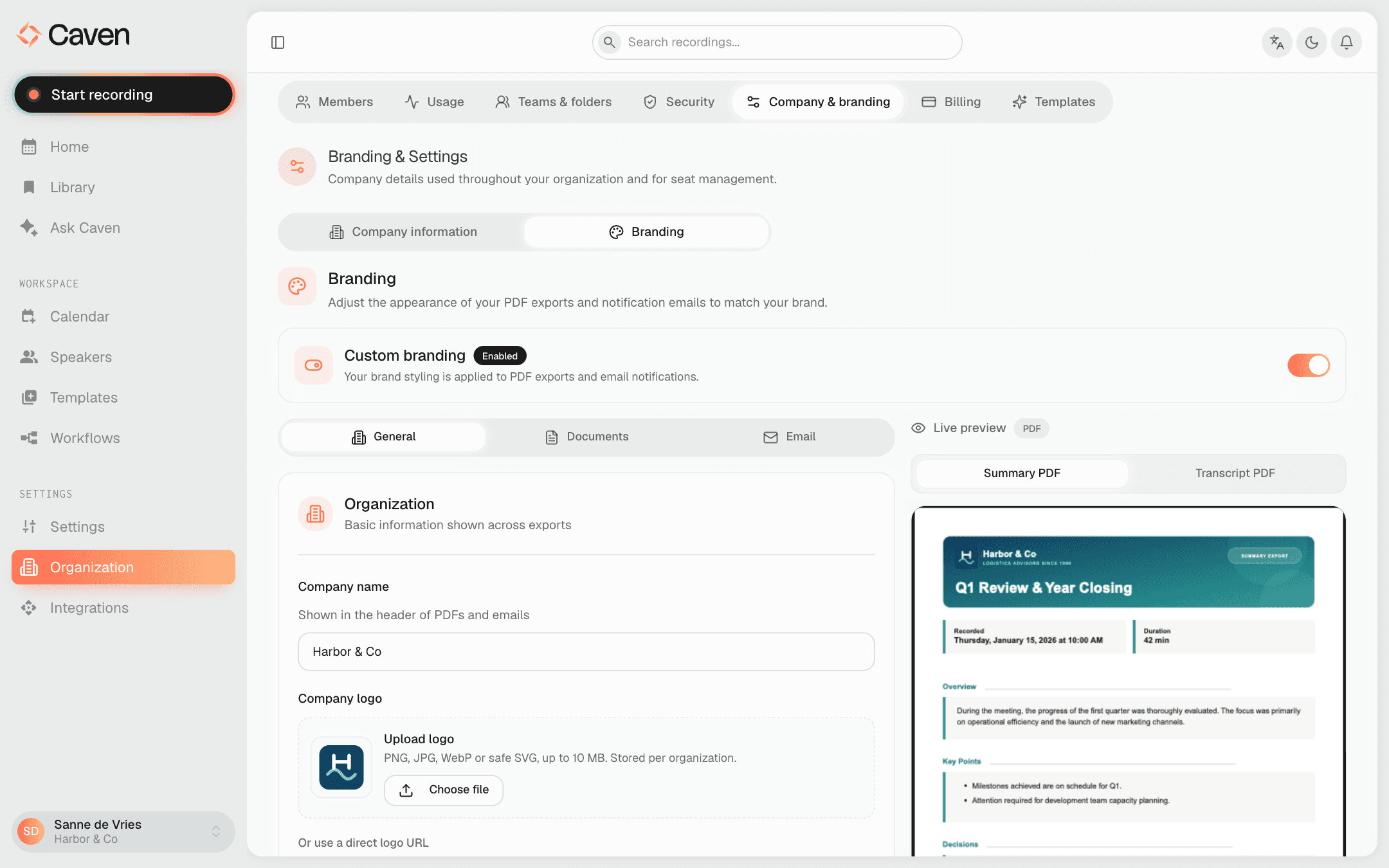 The Company & branding tab on the Organization page with the Branding section and the Custom branding switch
A master Custom branding switch turns the whole thing on or off, and is saved as soon as you flip it. While it is off, exports and emails use Caven's default styling. Other changes only take effect after you press Save Settings, and a live preview on the right updates as you edit.
General
The General tab holds what every branded document and email uses:
- Company name, shown in the header of PDFs and emails.
- Company logo, either uploaded (PNG, JPG, WebP, or SVG, up to 10 MB) or linked by URL. If you set neither, Caven falls back to the logo it detects from your organization's website.
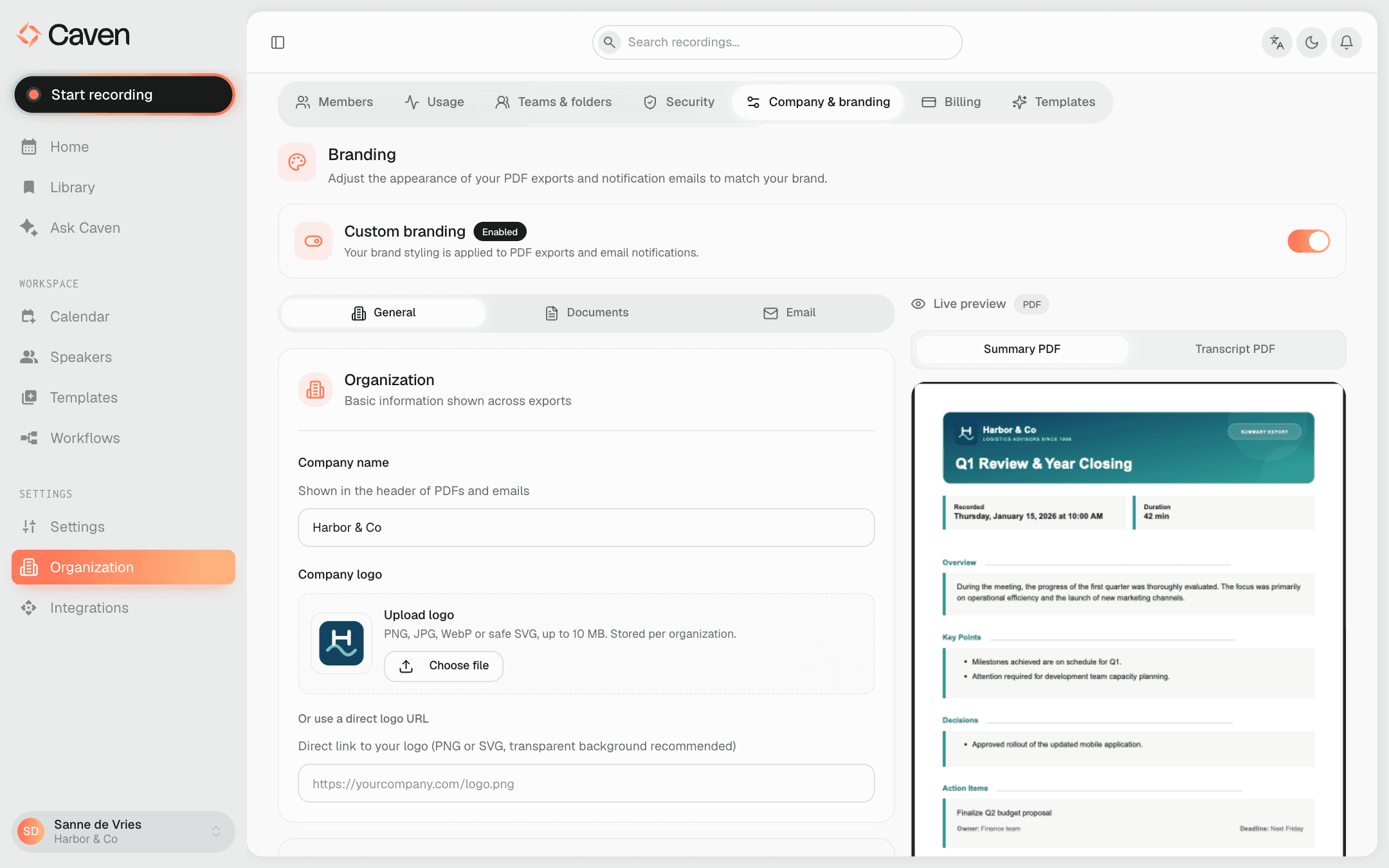 The Branding General tab with the company name field and the company logo upload, with a direct URL as alternative
Documents
The Documents tab controls every PDF and Word export. Choose one of two modes:
Standard PDF branding
Caven's built-in layout, styled with your settings:
- Header style: Showcase (a full-width coloured banner) or Minimal (a calmer header)
- Tagline / subtitle under the company name in the header
- Header color and Accent color (labels, lines, and small highlights)
- Toggles for the logo, the company name, and page numbers
- PDF footer text on every page
Custom Word template
Upload a .docx and Caven fills it in on every export, keeping your exact Word layout. Place these tags where the content should go:
{{title}}, {{date}}, {{duration}}, {{company}}, {{speakers}}, {{content}}, {{recordingOwnerName}}, {{recordingOwnerEmail}}
Download the starter template for a working example. When you upload, Caven checks the file and highlights supported tags in green and unknown ones in red.
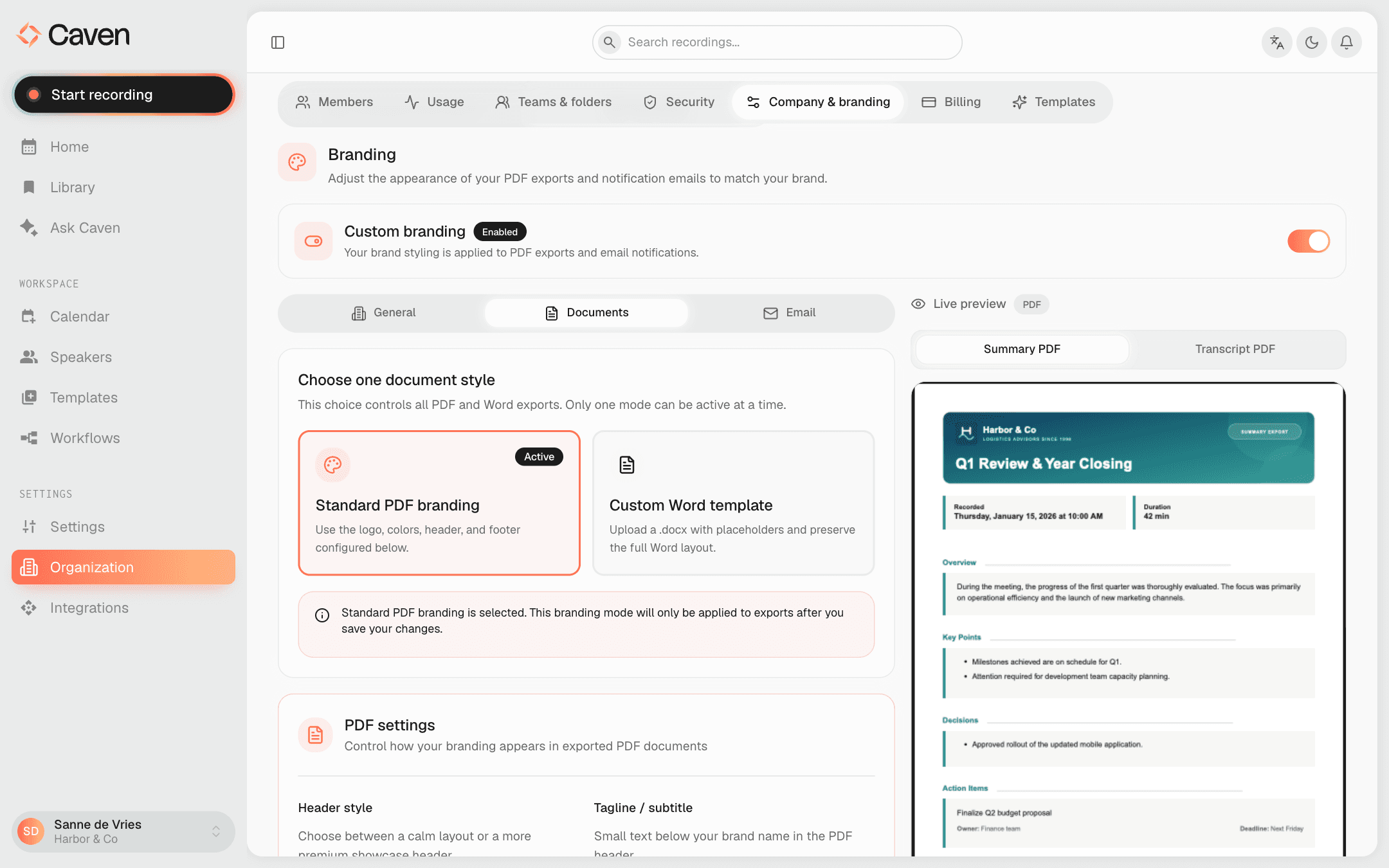 The Branding Documents tab with the Standard PDF branding and Custom Word template options, the header, colour, and toggle settings, and a live PDF preview
The Email tab styles the notifications Caven sends (recording-consent requests and meeting summaries):
- Sender name recipients see
- Show logo in emails, in the email header
- Email header color for the banner and buttons (follows the primary colour when left empty)
- Email signature / footer text
- Consent email texts per language (Dutch, English, French). Edit the body of the consent request;
{{organizer_name}}and{{organizer_email}}are filled in for each meeting.
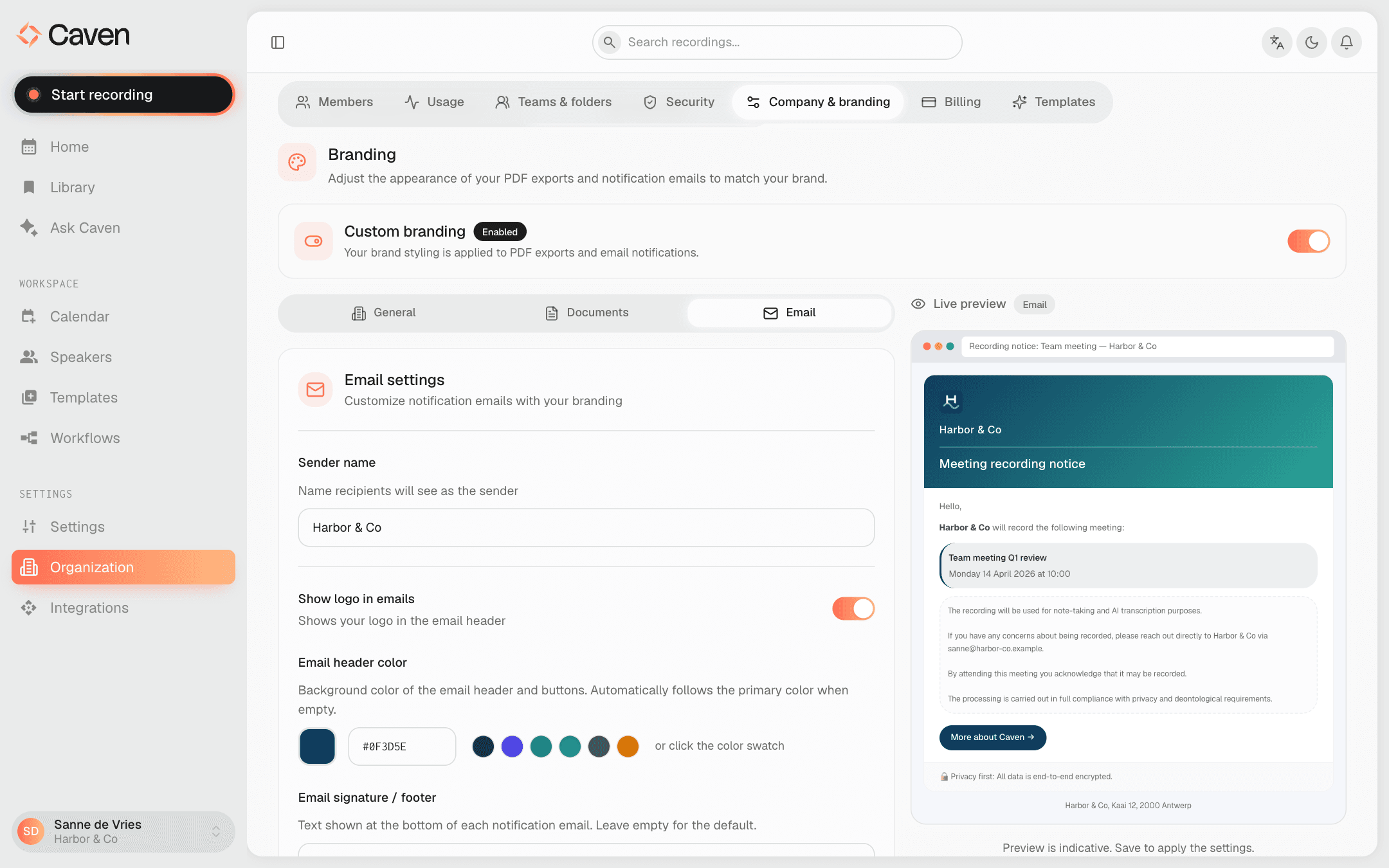 The Branding Email tab with sender name, logo, header colour, footer, and consent email text per language, and a live email preview
Consent emails and the participant-notification settings that trigger them are covered in Calendar.