
Account & settings
Settings
Your preferences, account, password, and notifications
Personal settings live under Settings in the sidebar. Organization-wide settings are separate, see Managing your organization.
Settings is one page with tabs:
- General: appearance, recording defaults, participant notifications, and speaker recognition, described below.
- Account: your profile, password, and two-factor authentication.
- Desktop Application: settings for Caven Studio, see Desktop app settings.
- Privacy & Data: where your organization's data is stored, see Privacy & data.
- MCP Server: connect Caven to an AI assistant, see AI assistants.
- API Keys: only for organization admins, see Authentication.
- Trash: deleted recordings, see Finding recordings.
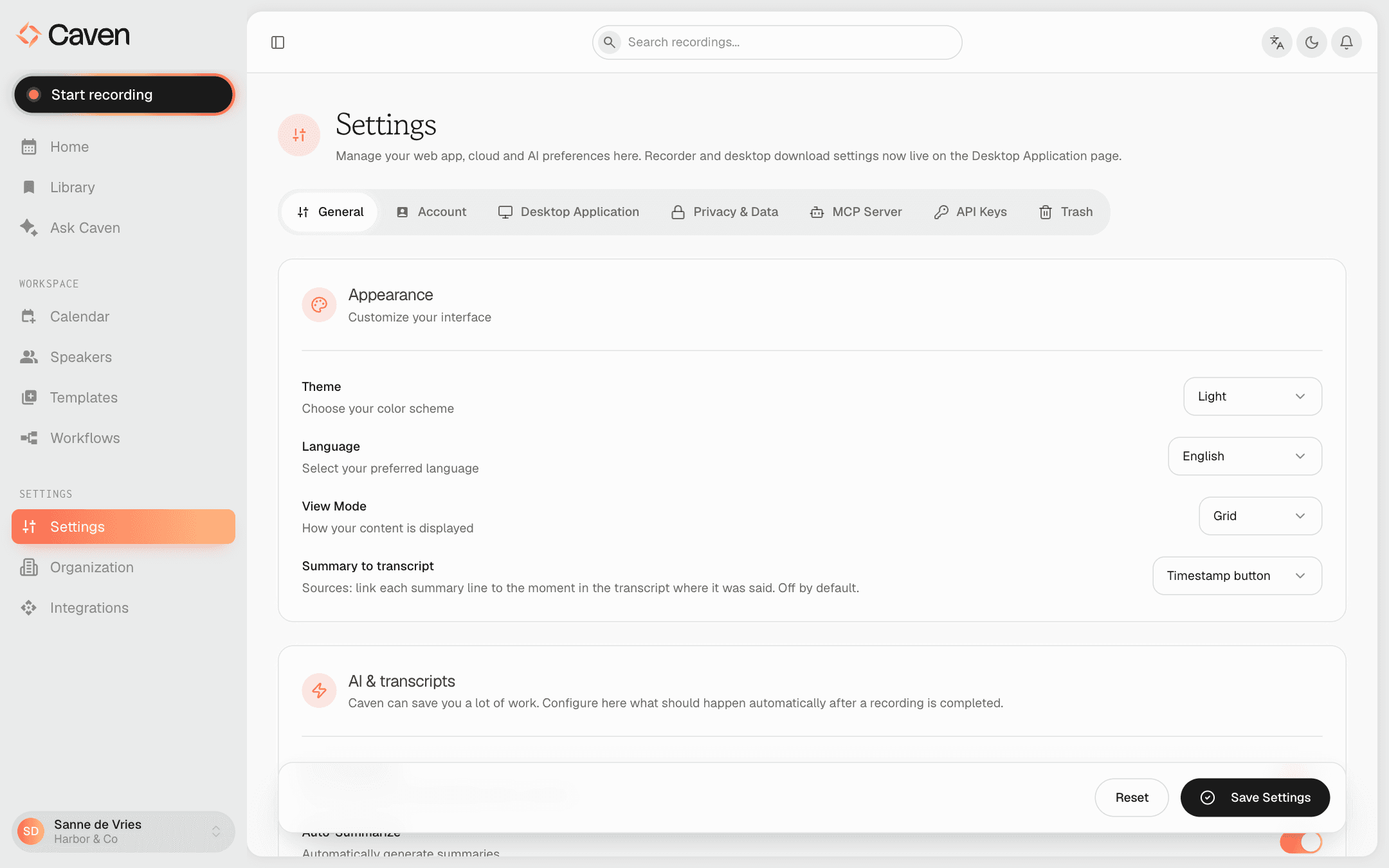 The Settings page on the General tab, with the Appearance and recording default settings
Changes on the General tab are saved with Save Settings at the bottom. Reset brings back the values you last saved.
Your organization admin can lock some of these settings for everyone. A locked setting is greyed out and shows Managed by followed by your organization's name. Only an admin can change it.
Appearance
- Theme: light, dark, or match your system.
- Language: the Caven interface language, Nederlands or English.
- View Mode: show the library as a grid or a list.
- Summary to transcript: link each summary line to the moment in the transcript where it was said. Choose Off (the default), Clickable text, or Timestamp button.
Recording defaults
These set what happens automatically to new recordings. They are the same toggles as in the onboarding wizard.
- Auto-Transcribe: transcribe every recording once its upload finishes.
- Auto-Summarize: generate a summary straight after transcription. Requires auto-transcribe.
- Split transcript in smaller chunks: break very long recordings into smaller chunks for processing, with a chunk length of 30 seconds to 5 minutes.
- Summary Language: the language new summaries are written in: same as the transcript, Dutch, English, French, Portuguese, or German.
Participant notifications
- Notify participants before meeting: send every attendee a recording consent email before meetings you plan to record. When it is on, you also choose how many minutes before the meeting the email goes out (5 to 120, 15 by default). Configured together with your calendar.
- Meetings shared with me: get a notification and an email when a colleague shares a meeting with you.
- Consent email language: send the consent email in English, Nederlands, or Français.
- Refusing the recording: every consent email includes a link to a page with a Refuse recording button. Only that button saves the refusal; you then see it in Caven.
Speaker recognition
If you belong to an organization, you also see:
- Share my identified speakers with the organization: speakers you name also appear in the organization's shared speaker list.
- Auto-match against organization-wide speakers: compare new recordings against every speaker in the organization, not just your own.
These override your organization's defaults for your account.
Your account
Under Settings → Account:
- Profile picture: upload an image, or paste an image URL.
- Name: your display name. Your email address is fixed.
- Change password: enter your current password and a new one.
- Two-factor authentication (MFA): turn on or off. Turning it on walks you through an authenticator app and a 6-digit code.