
For admins
Managing your organization
Members, teams, shared folders, SSO, and company settings for admins
If you belong to an organization, an Organization entry appears in the sidebar. Which tabs you see depends on your plan and your role:
| Who | Tabs |
|---|---|
| Admin of an Enterprise organization | Company & branding, Members, Usage, Teams & folders, Security, Billing, Templates, plus On-prem when your organization stores recordings on its own infrastructure |
| Admin of a Pro organization | Company, Members, Usage, Billing |
| Team admin (Enterprise) | Teams & folders, Members, Templates, limited to the teams you manage |
At the top of the page, tiles show your members, teams, shared folders, and seats. Click a tile to open the tab where you manage it.
Roles
- Member: records and manages their own meetings.
- Administrator: also manages the organization.
- Team admin: manages one or more teams, within the organization. A member can be a team admin without being an organization administrator.
Members and invites
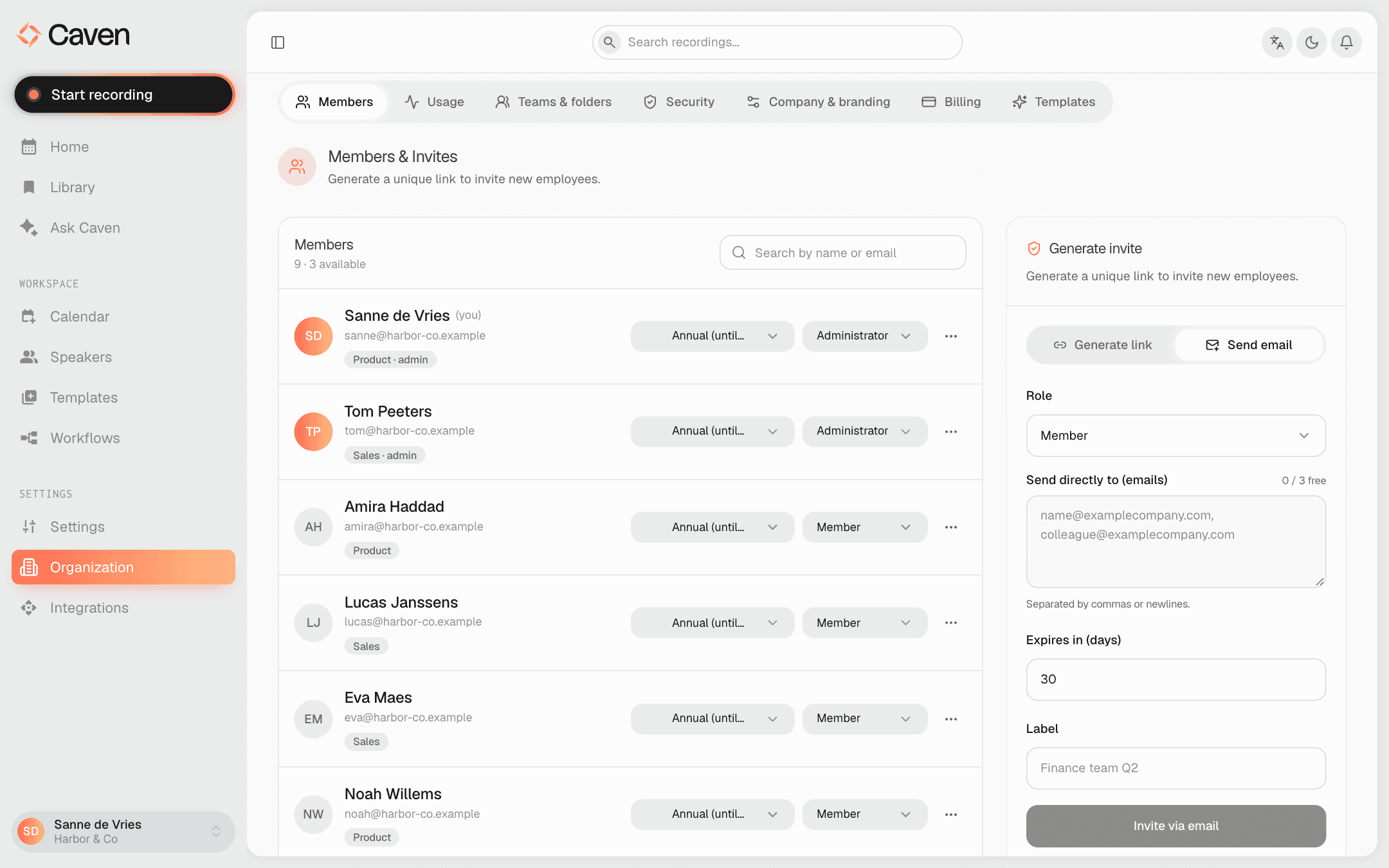 The Members tab with the members list, seat overview, and the panel to invite new members
- Invite people by email or by link. Choose Send email to send an invitation straight to one or more addresses, or Generate link to create an invite link you share yourself. Either way you pick the Role the person gets.
- Seat usage shows how many of your plan's seats are in use. Admins can buy more seats with Buy seats at the top of the page (on Pro: Manage plan).
- From the members list you can change a member's role, deactivate or activate them, or remove them from the organization.
Usage
The Usage tab shows who in your organization is recording, and how often, per user.
Teams
Group members into teams on the Teams & folders tab. A team is the unit you share things with:
- summary templates
- tags
- shared folders
Teams also have their own admins: in a team, each member is a Team member or Team admin.
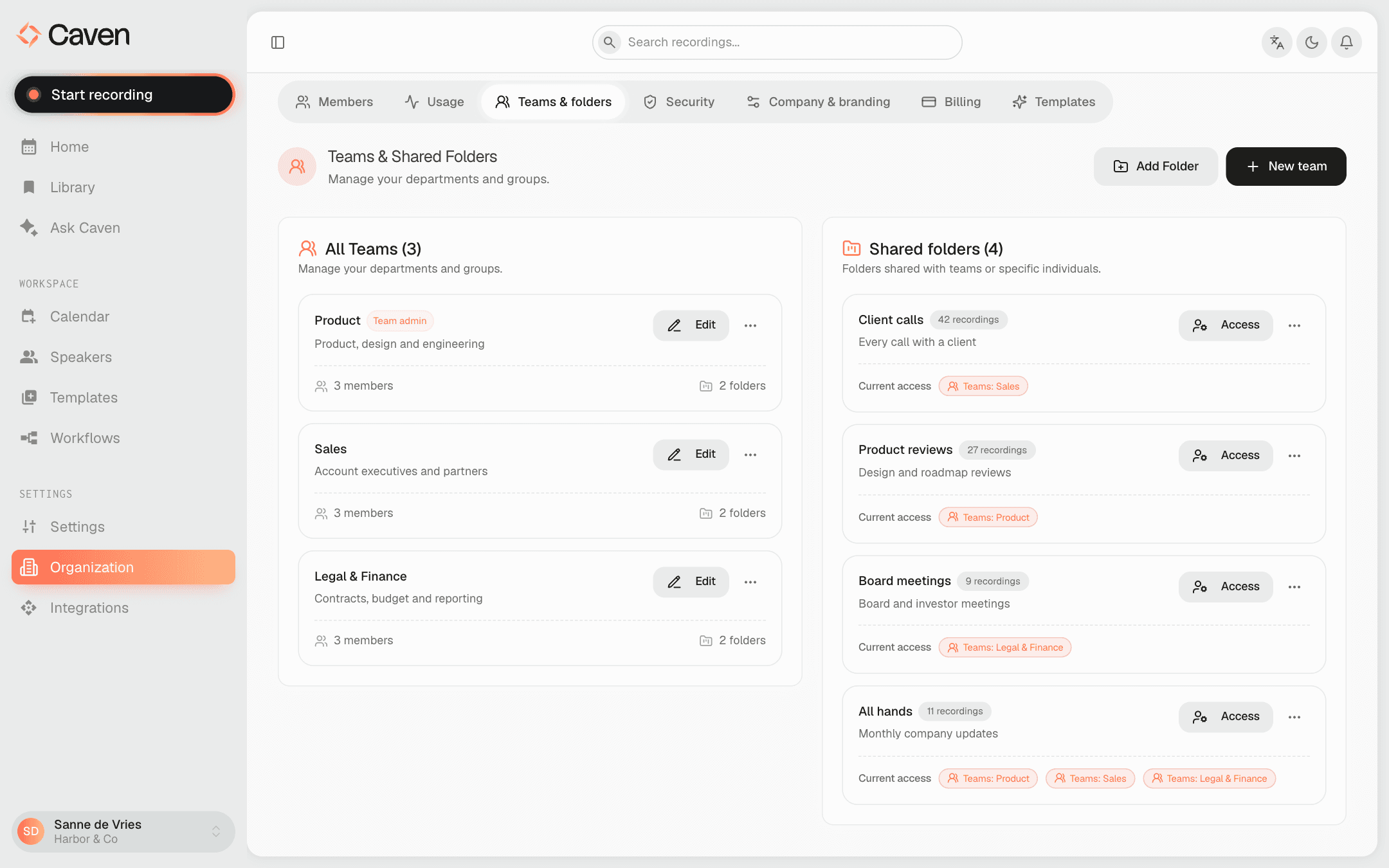 The Teams & folders tab with the list of teams and the shared folders
Shared folders
A shared folder makes recordings visible to the people who have access to it. A recording added to a shared folder stays in its owner's own library as well, so the owner does not lose access.
When you create a folder with + Add Folder, you decide who sees it:
- Selected teams: members of these teams get access automatically.
- Everyone: the whole organization sees the folder and every recording in it. Caven shows a warning, and you confirm with a tick before the folder is made visible to everyone.
- Exceptions: give extra people outside the selected teams access, or deny access to specific team members.
Members file a recording in a shared folder with the recording's Share button, on the Folders tab. See Sharing.
Security and policies
The Security tab (Enterprise) has two parts.
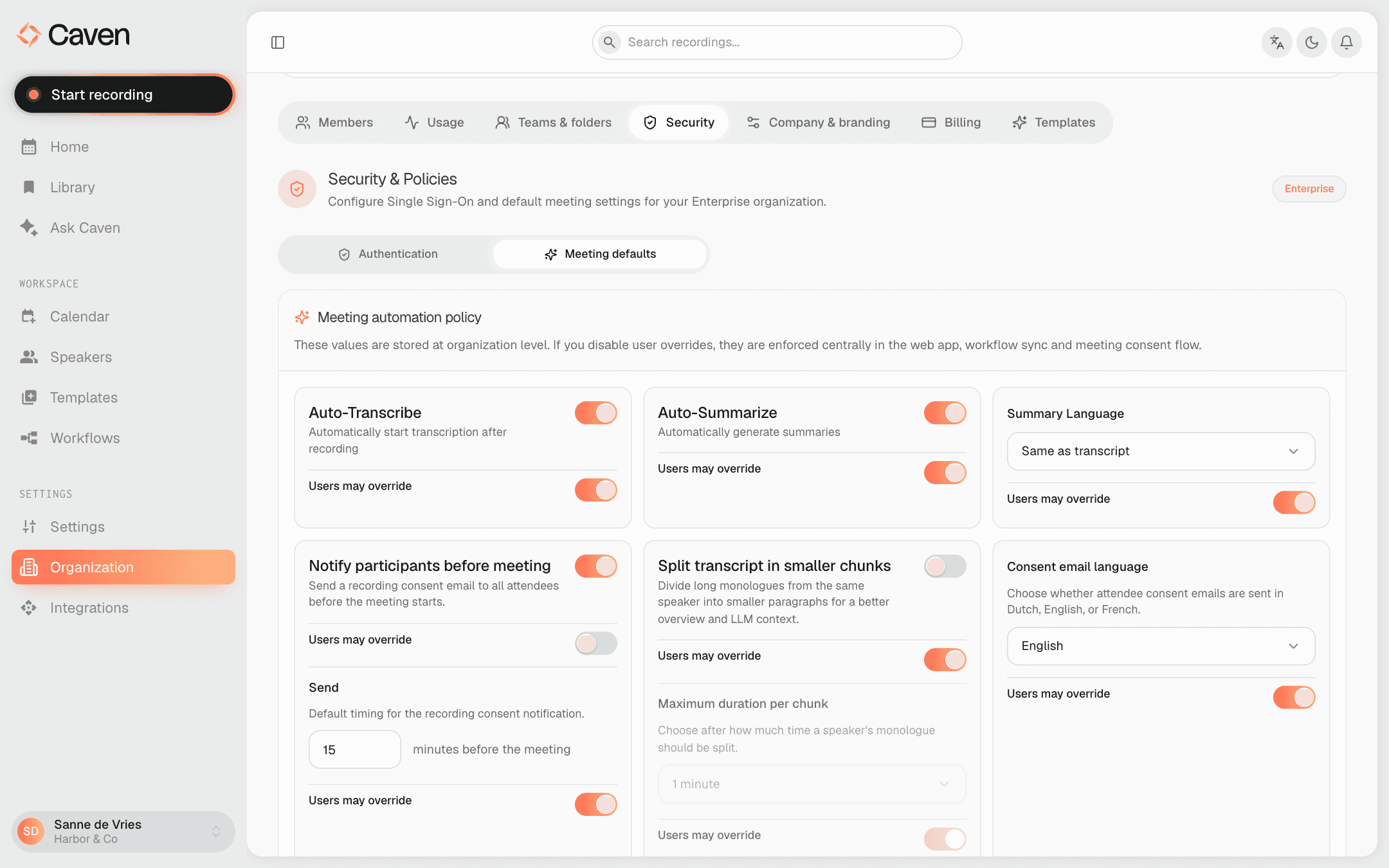 The Security tab with the meeting defaults for the organization
Authentication:
- Single sign-on: enable Google or Microsoft SSO for the organization, and optionally enforce it so members can only sign in that way. Under Allowed Domains you list the email domains of your organization; people with another email domain cannot register or sign in through SSO.
- Enforce MFA: require every member to set up two-factor authentication before they can use Caven.
Meeting defaults: organization-wide values for auto-transcribe, auto-summarize, the summary language, participant notifications, and speaker recognition. For each setting, Users may override decides whether members can change it in their own Settings. When it is off, members see the setting greyed out as managed by your organization.
Branding
Enterprise organizations can put their logo, colours, and wording on exported PDFs, Word documents, and the emails Caven sends on their behalf. Set this up under Company & branding → Branding. See Branding.
Company information
Under Company & branding → Company information (on Pro: the Company tab) you fill in:
- your company name, Website URL, and what your company does
- the Specific Business Focus and Specific Jargon, Abbreviations & Terminology, which help the AI understand your meetings and spell your terms correctly in summaries. AI Autofill fills these in from your website.
- your Sector. The sector tunes which system templates your organization gets by default.
The Sharing with colleagues switch lets members share meetings directly with colleagues in the organization. Turning it off also removes access to meetings that were already shared that way.
Billing
Seats and plan are managed on the Billing tab. See Plans & billing.