
Troubleshooting
Sending logs to Caven
How to send Caven Studio's technical log to support when they ask for it
Caven Studio keeps a technical log on your computer of what the app does: starting recordings, saving them, uploading them. When something goes wrong, for example a recording that will not finish uploading, Caven support may ask you to send your logs. That lets them see exactly where it went wrong, without needing remote access to your computer.
Sending takes three clicks and happens only when you do it yourself. You send them from the recorder's settings panel, or from the Caven icon in the menu bar or system tray.
Send your logs from the recorder
1. Open the settings
Click the gear icon at the top right of the Caven Studio bar.
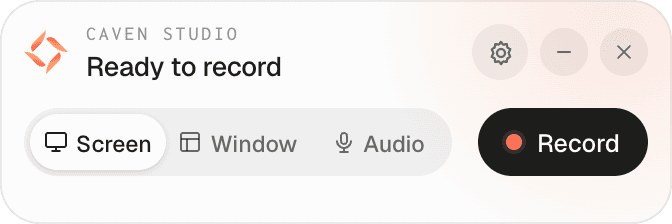 The Caven Studio bar with the gear icon at the top right highlighted
Don't see the bar? Click the Caven icon in the system tray (Windows, bottom right next to the clock) or in the menu bar (macOS, top right) to open it.
2. Click "Send logs to Caven"
At the very bottom of the settings, below the buttons, it says Having problems? Send logs to Caven. Click Send logs to Caven.
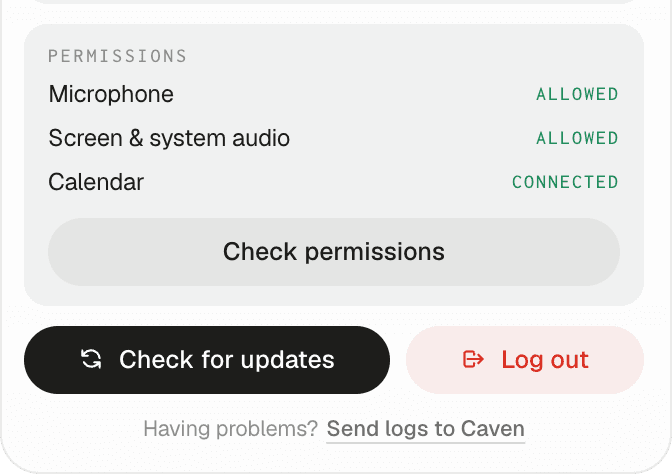 The Caven Studio settings with the "Send logs to Caven" link at the bottom highlighted
3. Wait for the confirmation
After a few seconds you see Logs sent. The Caven team can now take a look. You do not need to email anything: the logs reach support directly, linked to your account.
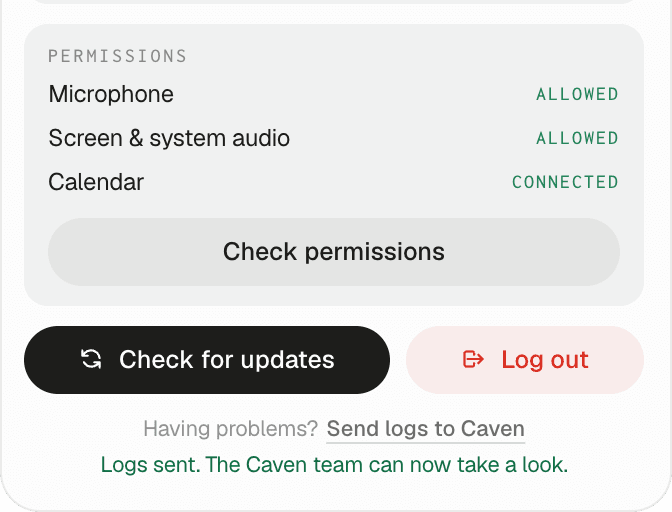 The confirmation "Logs sent. The Caven team can now take a look." below the link
Let support know you have sent them, and roughly when the problem happened. That helps them find the right moment in the log.
Alternative: right-click the Caven icon in the system tray (Windows) or click it in the menu bar (macOS) and choose Send logs to Caven. A notification confirms when they have been sent.
Don't see the link?
The link is available from Caven Studio's latest version. Click Check for updates in the same settings panel, let the app update, and try again.
If sending fails
The settings show Sending logs failed, with the reason. Check that you are online and still signed in to Caven Studio, then try again. If it keeps failing, let support know which message you see.
What is and isn't in the logs
The log contains technical events from the app: which version you use, your operating system, when recordings were saved and uploaded, and any errors along the way. It also lists every recording file still on your computer (size, date and whether it has been uploaded) and any errors from the upload queue.
- Not included: your recordings, transcripts, summaries or passwords. Sign-in tokens and keys are removed before anything is written to the log.
- Included: file names and titles of recordings, because those appear in the upload steps.
The log stays on your computer until you send it. Once sent, only Caven support can view it.