
Sharing and export
Sharing
Sharing a meeting by email, with colleagues, in folders or with a link
Click the Share button next to the meeting title on a recording. It opens Share this meeting with four tabs: Email, Colleagues, Folders and Link. Email is open by default.
Send the summary to people by email, inside or outside your organization.
- Add up to 10 email addresses.
- Under What they can see, choose whether to add the transcript and the recording. The summary is always included. These are the same settings as the link.
- Click Email summary.
Each person gets the summary by email with their own personal link to the meeting. The email goes out in your language.
Below, Sent to lists everyone you emailed and when each person opened their link. The switch next to a person turns their personal link off (or back on) without affecting anyone else.
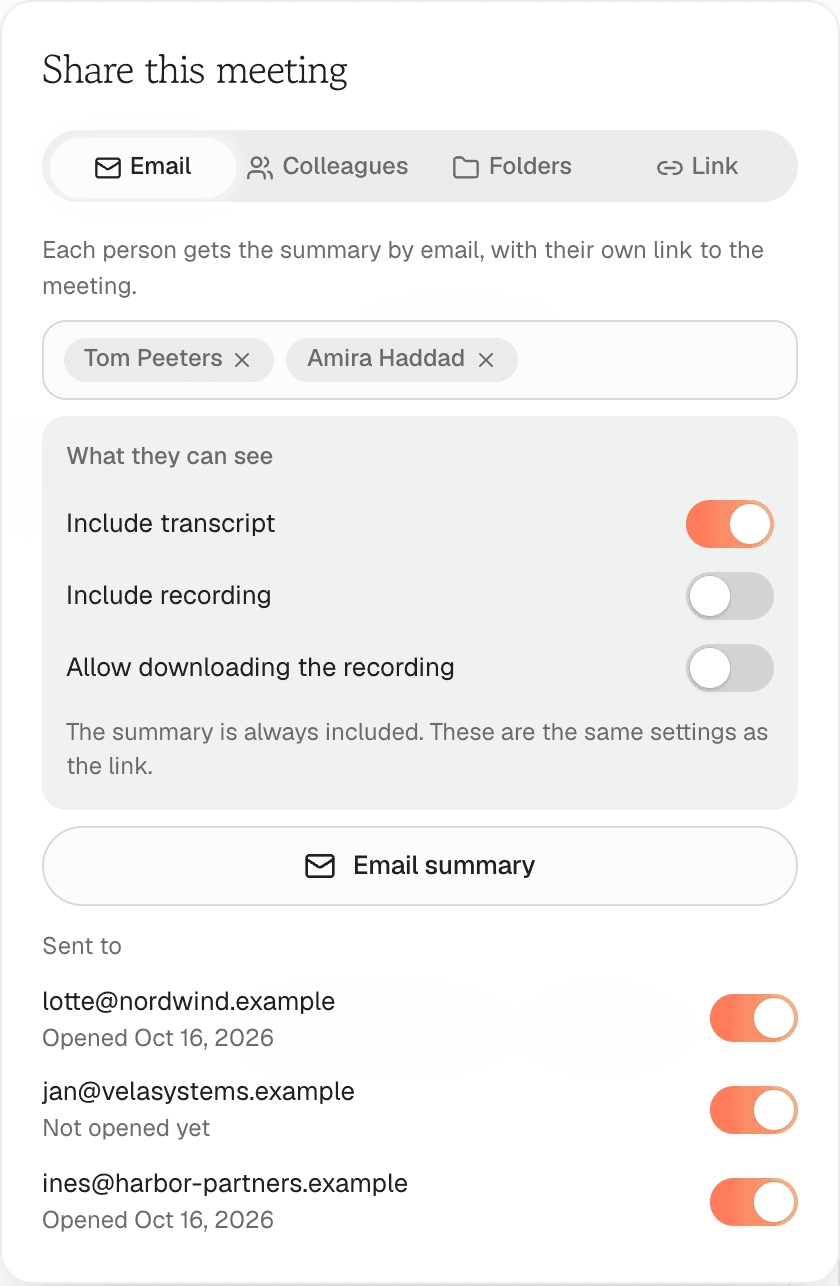 The Email tab of Share this meeting: email recipients, the What they can see toggles, the Email summary button and the Sent to list
Colleagues
Share inside Caven with people in your organization. Pick colleagues and click Send. They get a notification and an email, and find the meeting under Shared recordings in their Library. They can view the meeting, not edit it.
People with access lists who can open the meeting. Remove someone to take their access away.
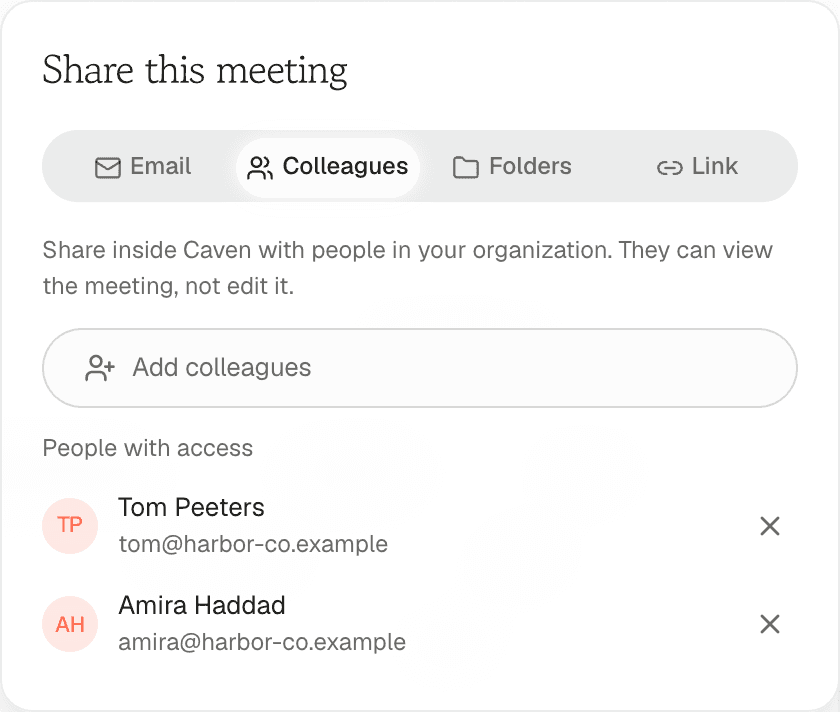 The Colleagues tab: a colleague search and the People with access list
This tab is hidden when an admin turned off Sharing with colleagues for your organization.
Folders
File the meeting into one or more shared folders, so everyone with access to that folder can open it while it stays in your own library. Folders that are visible to the whole organization show an Everyone badge.
Organization admins and team admins can also change the folders of a colleague's meeting. Only the owner can share a meeting by email or link.
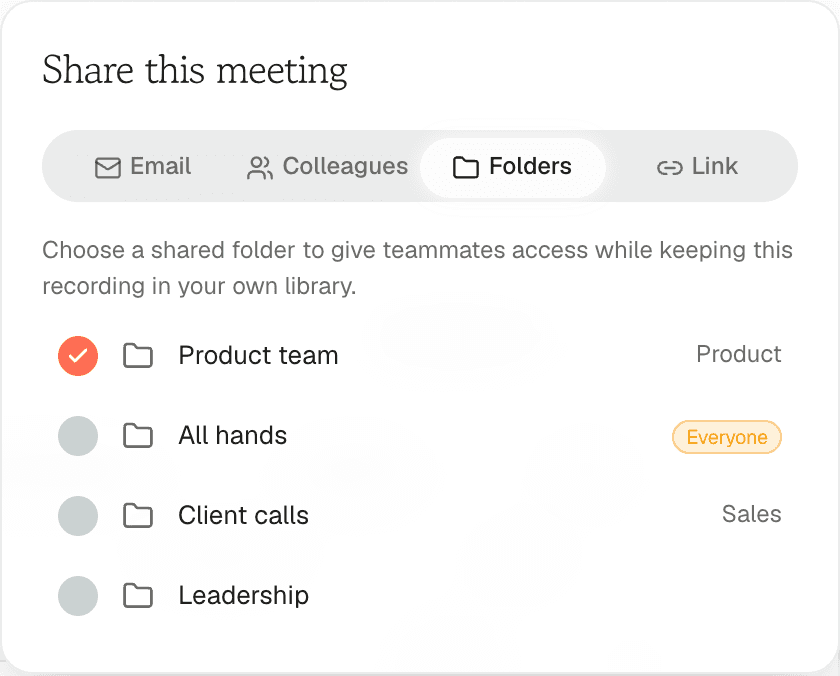 The Folders tab: a list of shared folders, one with the Everyone badge
Link
A link lets anyone open the meeting in their browser, without a Caven account. The summary is always included. Choose what else they can see:
- Include transcript
- Include recording
- Allow downloading the recording
Click Copy link to create the link and copy it. Changes to these settings apply to the existing link right away.
Under Advanced options:
| Option | Choices |
|---|---|
| Link expires | Never, or 1 / 7 / 30 / 90 days |
| View limit | Unlimited, or 1 / 10 / 50 / 100 views. You can add more views later; the link shows N views left |
| Password | At least 8 characters. Share it with the recipient separately |
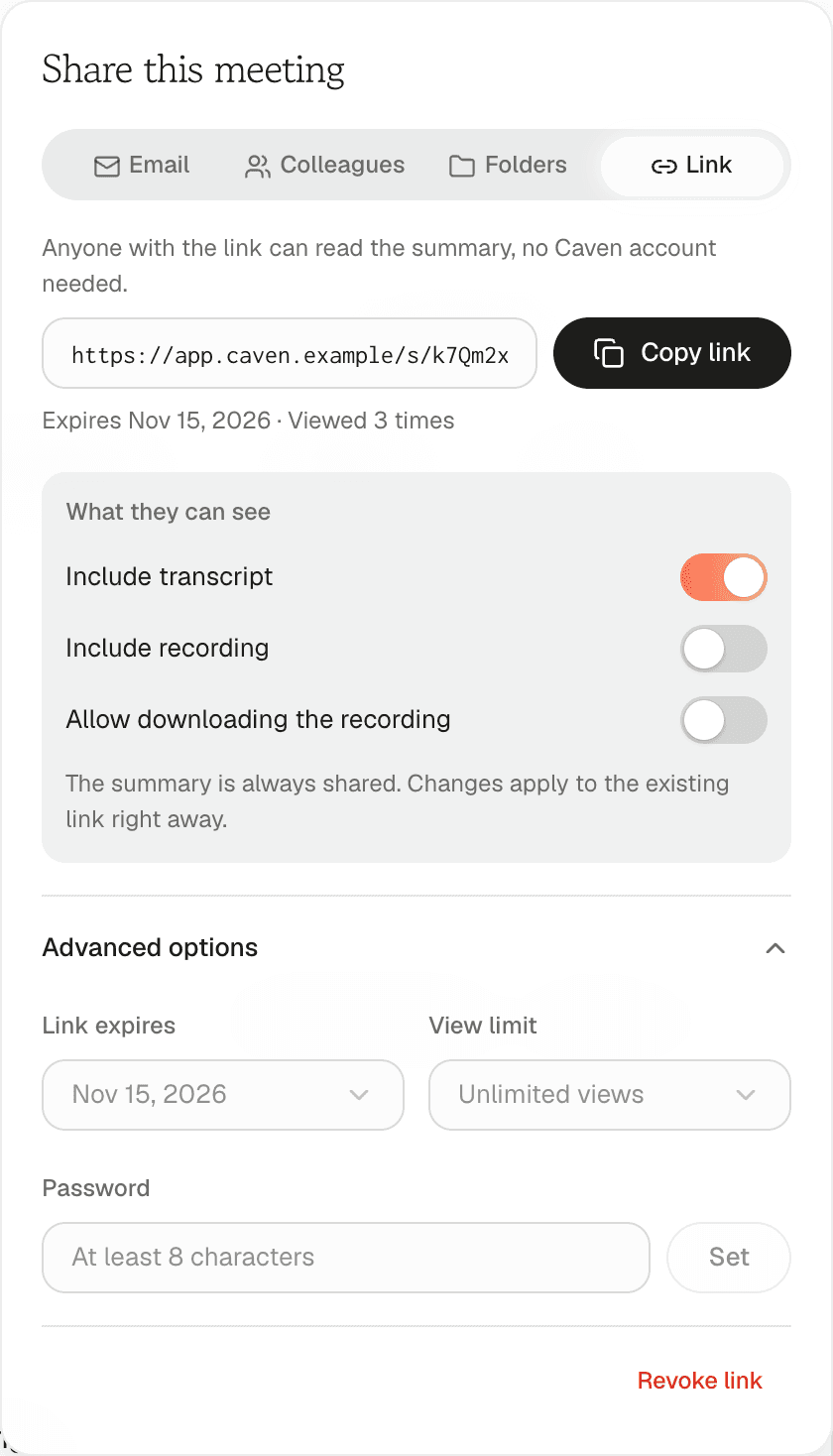 The Link tab: the Copy link button, the Include transcript, Include recording and Allow downloading toggles, and Advanced options
The Link tab also shows how many times the link was viewed. Revoke link stops it working immediately.
What the recipient sees
The share page shows the summary, and the transcript and the recording if you included them. If you set a password, they enter it first. There is no sign-in and no editing.
For an audio-only meeting, the page shows an audio player, and a Download audio button when downloading is allowed.
The Caven mobile app has a share sheet too.